

Premium product support service & resources
Product Releases
We're continuously improving Intertec TimePro, to make the application more effective, efficient and accessible for your time tracking needs. Use the links below to find out what's new in the latest version of Intertec TimePro.
What's New In:
- Intertec TimePro v6.2.11 to v6.2.14 (continuous improvement to Apr 2026)
- Intertec TimePro v6.2.10 update (released April 2025)
- Intertec TimePro v6.2 (released December 2024)
- Intertec TimePro v6.1.19i to v6.1.19r (continuous improvement to May 2023)
- Intertec TimePro v6.1.19d to v6.1.19h (continuous improvement to Dec 2022)
- Intertec TimePro v6.1.12 to v6.1.19c (continuous improvement to May 2021)
- Intertec TimePro v6.1.11 (released April 2018 Hosted and In-House)
- Intertec TimePro v6.0.1 to v6.0.32 (continuous improvement May 2016 to July 2019)
- Intertec TimePro v5.6 (released December 2015)
- Intertec TimePro v5.5 (released November 2014)
- Intertec TimePro v5.4 (released August 2013)
- Intertec TimePro v5.3 (released June 2012)
- Intertec TimePro v5.2 (released January 2011)
- Intertec TimePro v5.1 (released November 2009)
- Intertec TimePro v5.0999 update (released November 2008)
- Intertec TimePro v5.0995 update (released July 2008)
- Intertec TimePro v5.0 (released February 2008)
- Intertec TimePro v4.6 (released February 2007)
- Intertec TimePro v4.4 (released February 2006)
- Intertec TimePro v4.3 (released October 2005)
- Intertec TimePro v4.2 (released May 2005)
- Intertec TimePro v4.1 (released February 2005)
- Intertec TimePro v4.0 (released January 2005)
- Intertec TimePro v3.7 (released June 2004)
- Intertec TimePro v3.5 & v3.6 (released March 2004)
- Intertec TimePro v3.4 (released June 2003)
- Intertec TimePro v3.3 (released April 2003)
Intertec TimePro v6.2.11 to v6.2.14 (April 2026)
Enhancements/Fixes
Enhanced Security with Azure Front Door
We’ve strengthened the security of our platform with the implementation of Microsoft Azure Front Door, adding an additional layer of protection between your data and potential threats.

This enhancement helps safeguard the application from malicious traffic, suspicious activity, and common web-based attacks before they ever reach our core systems. By intelligently filtering and monitoring incoming requests at the network edge, Azure Front Door improves both security and performance.
It enables faster, more reliable access for legitimate users while proactively blocking bad actors, helping ensure your data remains secure and your experience remains seamless. This upgrade reflects our ongoing commitment to providing a secure, enterprise-grade environment for all clients.
Minor Fixes and Enhancements
- Improved search functionality in text searchable dropdown lists, making it easier to find results even when typing part of a word.
- Corrected week number calculations to ensure accurate reporting and exports in line with ISO standards.
- Resolved an issue that could cause an error when copying project staff when MYOB integration is enabled.
- Enhancements to export process and project task import to allow longer run times after Azure Front Door implementation.
- Improved timer accuracy and stability for more consistent and dependable elapsed time tracking.

Intertec TimePro v6.2.10 Upgrade (April 2025)
Enhancements/Fixes
Search Filter Added to Multi-Select
We’ve enhanced the Multi-Select pop-up window by adding a new Search Filter field.
The new Search Filter allows users to enter a text string to further refine their selection criteria.
The new Search Filter is case-insensitive and supports partial text string searches, making it even easier to find relevant results.

Text Searchable Drop-Downs Across More Screens
We’ve extended our powerful text-searchable drop-down feature to even more areas of the application, including the Projects Admin, Staff Projects Admin, and Project Tasks Admin screens.
This enhanced drop-down makes it easy to quickly find and select items from long lists. Simply start typing, and the list will instantly filter based on your text input — saving you time and improving accuracy when selecting Projects and Tasks.
If you manage a large number of Projects or Tasks, this upgrade will make navigating and selecting the right records faster, smoother, and more intuitive.

Minor Fixes and Enhancements
- When clicking the Multi-Select button on the Staff Project Admin and Edit screens, the associated drop-down list did not correctly update to reflect the "[Multiple Selection]" option. This has been corrected.
- Improved mid-string searches in the text-searchable drop-downs. Searching for text will now look everywhere in a string instead of just words that start with the search string.
- After releasing the Project Staff screen to project managers, the Project Staff Edit screen would prompt a validation error when adding a new record. This has been corrected.
- The Check Time screen has been optimized to significantly improve performance when handling large volumes of data. Previously it could time-out in some situations.
Intertec TimePro v6.2
Major enhancements
New Multi-Select Feature on the Staff Project Screen
We have added the Multi-Select Feature to the Staff Projects screen, making it easier than ever to manage projects and staff in bulk!

Key Highlights:
- Streamlined Multi-Selects: Quickly filter records on the Staff Project List/Admin screen by selecting multiple projects or staff. Bulk edits are now faster and more efficient.
- Enhanced Add Mode: When adding new Staff Project records, your selections from the Admin screen seamlessly carry over, saving you time.
- Smart Record Handling:
- Existing records with matching project, staff ID, Role, and Status remain untouched.
- New entries are automatically created when no match is found, with a unique Project Staff ID (PSID) assigned.
- Cost codes are included if the "Use Cost Code" system setting has been enabled.
- Flexible Rate Management:
- The Add Mode introduces ‘Use Default Rate’ checkboxes for even more flexibility. Enable default rates for staff with a simple tick, or manually adjust as needed.
- Rates are automatically cleared if multi-select is active when you open the screen, ensuring a clean slate for bulk updates.
- Bulk Disabling Made Easy: Disable staff assignments on projects in bulk using a combination of the Multi-Select together with the Bulk Change feature, giving you more control in just a few clicks.

Data Export Enhancements

We’ve enhanced our data export feature to make analysis and reporting easier and more informative!
Time and Expense Data Exports now include key Period-related fields such as:
- Period Start Date
- Period End Date
- Month Number
- Week Number
- Week Start Date
These additions simplify data summarization, enabling seamless analysis and streamlined reporting workflows.
Gross Profit Insights: Dive deeper into your project’s performance with the new option to export Gross Profit. This powerful metric—calculated as the difference between Sale Value and Cost Value—gives you a clear view of project profitability directly in your exported data.
Staff Cost by Week Report Upgrade
Run reports your way! The Staff Cost by Week Report now supports multi-select for staff, allowing you to generate insights across multiple team members at once.

Smarter Timesheet Copy Feature
We’ve refined the Timesheet Copy feature to make it more intuitive and efficient. Now, time records linked to disabled Customer, Project, Task, or Staff Project data will automatically be excluded from copying.
This ensures your timesheets stay clean, accurate, and free from unnecessary clutter, saving you time and effort in managing your records.

Smarter Advanced Timesheet Replication
We’ve upgraded the Advanced Timesheet Time Records Replicate feature to work harder for you. Time records linked to disabled Customer, Project, Task, or Staff Project data will now be automatically excluded from replication.
This enhancement keeps your data accurate and streamlined, helping you focus on what matters most—efficient time tracking and project management.

Reliable Password Reset Emails
We’ve resolved an issue with the Forgotten Password feature where, in certain cases, reset emails might not have been sent. This fix ensures a seamless and dependable password recovery process every time.

Intertec TimePro v6.1.19i to v6.1.19r
Enhancements/Fixes
- Fix for some incorrect code references causing 404 errors in logs. No impact to functionality only the logging of errors.
- Fix to Data Export due to large multi-selects which can create very large user context data sets resulting in page display time-out errors.
- Improvement to the display of timesheet submit and authorisation times based on the end-users logon time zone rather than default on Azure (GMT 0). If the user’s timezone cannot be obtained the timezone should default to AEST (GMT+11). Similar change applied to the Audit Report, so Last Update time is as per the users time zone rather than GMT 0.
- Email components upgraded to be tolerant of spaces and tabs found to be common in staff names, usually resulting from copy/paste of values into Staff and Manager fields.
- Email components upgraded to be tolerant of case differences in email addresses when determining if a CC address is to be included in the email being sent.
- Email sending functionality has been upgraded substantially to be on the latest security protocol TLS 1.2, and to use the latest API which has significant performance improvements, especially for clients sending large consecutive numbers of chase-up emails.
- The security of the Data Export page has been improved to ensure that the underlying queries were stored in a more secure way.
- There were areas of the code base that were testing for the use of 'https' versus 'http' protocol. To enhance security the code for these areas has been updated to force the use of https. Since migrating to MS Azure the Xero Import module was failing. The change to force https in the Xero Import page fixed that issue. Other pages referenced were changed for consistency to force https.
- Migration of Intertec TimePro Hosted Platform (Databases and Web Servers) from WebCentral Group to Microsoft Azure Hosting Platform.
Intertec TimePro v6.1.19d to v6.1.19h
Enhancements/Fixes
- Fixed an issue with the display of the submit and authorise date/time values in the Summary Timesheet page. The date was being displayed in MM/DD/YYYY format. Even though the issue has come about as a result of testing for the MS Azure Platform, other pages on the site were displaying the date format incorrectly. We found that there was an inconsistency in the date formatting code on the Summary Timesheet page which has now been corrected.
- Fixed an issue where if you only have Global Tasks turned on a Task filter appears in the Data Export. This filter was not working, in that if you chose a single Task all tasks would still appear.
- Increased the data export limit from 50,000 to 150,000 records.
- Fix to remove incorrect column sort option in the drilldown quick report mode.
- Corrected following problems with attendance times in Composite (Staff timesheet) mode:
- multi-selections are now handled correctly.
- sort order matches timesheet order.
Intertec TimePro v6.1.12 to v6.1.19c
Major enhancements
Time Entry Screen Enhancements
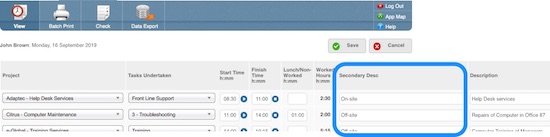
New Secondary Description Field
A Secondary Description field has been added to the Time Entry screen so additional information can be recorded against a time entry if required. The Secondary Description field can be configured to display as a free-from text entry field or as a drop-down list alongside the existing time record Description field.
- Free-Form text entry field: This format is useful to allow users the ability to type additional text during time entry.
- Drop-Down list: This format is useful to allow users to choose additional text from a standard list of values.
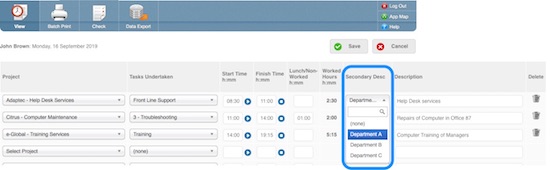
For the drop-down list option, the standard list of values are maintained using a new Secondary Description maintenance screen. The screen is located under the Settings tab on the main application toolbar.
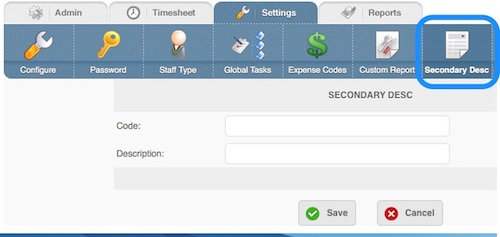
The Description is displayed to the users when they choose values from the drop down. The Code/Description could be the same or different depending on your requirements. The Code is limited to 50 characters. The new screen has also been added to the “Custom Reports” area so it can be published to non-admin users.
Configuration of the Secondary Description field is controlled using the following three new parameters located under Settings > Time Entry.
- Secondary Description: The feature is 'Off' by default. You can choose to enable this feature as a drop down list or text entry field, and as either a prefix or suffix.
- Secondary Description Label: Define your own label (up to 7 characters) to appear as the title for the new field wherever it is displayed.
- Secondary Description Required: Choose to make the new field optional or mandatory during time entry.
Note: This new data field is stored within square brackets as either a prefix or suffix inside the existing time record Description field. As such it will appear wherever the Description field is shown within the system - ie on Timesheets, Reports, Exports etc. To analyse the data stored in the Secondary Description field you can use the Timesheet->Data Export feature, or request a custom Export/Report be developed for your business (please contact our Support Centre for further details - custom work is chargeable).
Timer Control Improvements
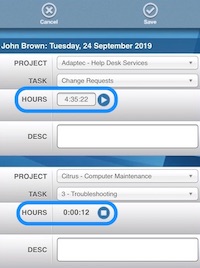
The Timer Control on the Time Entry screen is now accurate to the second until the page is saved. Previously the Timer Control rounded to the nearest minute when a second Timer was started
The Timer Control on the Time Entry screen has been realigned to improve the design of both the desktop and compact (smartphone) time entry interfaces.
Batch Print Screen Enhancements
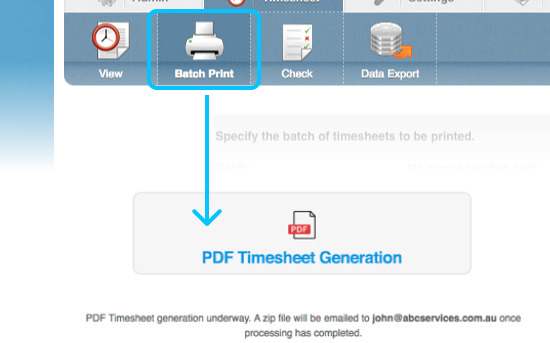
When processing more than thirty timesheets the system will work in the background to generate timesheets in PDF format. On completion the system will create a .ZIP file containing the individual timesheets and email this to the Administrator.
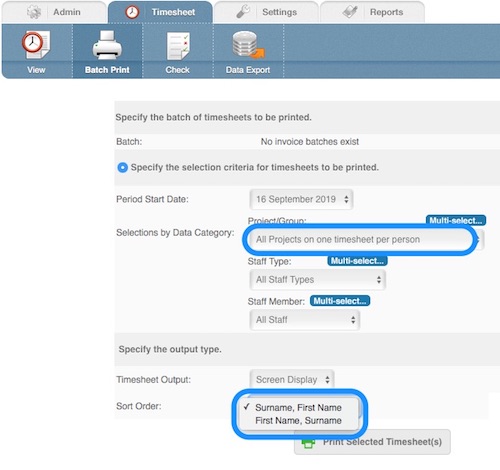
The Batch Print Screen now allows a choice of sort order when the “All Projects on one timesheet per person” option is selected. You can choose to sort in 'Surname, Firstname' (Default) or 'Firstname, Surname' order.
Web API Service for Custom Automated Data Extraction
We can now offer clients a Web Service for automating the retrieval of data. This custom service enables data to be extracted by clients as an XML data stream communicating over the SOAP protocol. The client is responsible for invoking the request, retrieving the data and processing it as required, for example saving as a CSV file for viewing as a spreadsheet, or storing the data into a local database.
Clients need to have staff with technical skills to take advantage of this service as it involves programming work to access our API. There are web development consulting fees that Intertec charges for setting up this service as we create tailored data feeds to match our clients requirements. We generally quote between 4 - 6 hours to create a custom web API extraction service.
SendGrid Email Delivery Service

SendGrid is a cloud-based email delivery platform used by both traditional, internet and mobile-based companies to send monthly customer engagement emails that number in the billions.
We chose SendGrid as our core email delivery service for our Clients because of its deliverability, scalability, reliability and compliance with anti-spam regulations.
Any email delivery issues can now be investigated and resolved much more quickly due to the extensive logging and troubleshooting capabilities of the platform.
Another benefit of SendGrid is that for any of our Clients with very strict email security requirements (DKIM / SPF with domain name etc), it is possible for them to setup and configure their own SendGrid account for their organisation with all the security requirements they need. We can then save their unique authentication API key in our application to be used for sending their email.
OTHER ENHANCEMENTS/FIXES
- Updated the label for the time record Description entry field from ‘Description of Task Undertaken’ to just 'Description'.
- Text Searchable Drop Down List style has been added to the My Projects Screen.
- If the Staff Status on the Staff Edit Screen is changed from Disabled to Active, and the Staff record is set to Global, then on saving the record any missing Staff Project assignment records will be automatically added.
- If the Project Status on the Project Edit Screen is changed from Disabled to Active, and the Project record is set to Global, then on saving the record any missing Staff Project assignment records will be automatically added.
- The MYOB Jobs field of the Project screen has been increased by 1 char in length to match the external accounting systems field length.
- Corrected calculation of calendar week 53 in the Timesheet View Screen to ISO specification (Week 1 is that week which contains 4th Jan).
- Corrected the validation of Lunch/Non-worked hours in the Time Entry Screen. Values exceeding 2359 were causing a system error. This has been fixed.
- Special handling for Time Clock users was inhibiting the check for negative or zero worked hours. This has now been fixed.
- The Project Task import was failing if the Notes field contained text with carriage returns. This has been fixed.
- Previously users could stay connected longer than their session timeout setting as old session clean-ups were not actioned immediately. Now context expiry is checked on every page access. So for example if you have it set the session timeout to 5 mins and you are inactive for 5.1 mins you should be immediately logged off at the next access attempt.
- When a non-report page (e.g. Staff listing), was released to a normal user via Custom Reports feature, it displayed with a menu banner. This has now been fixed so that any pages released to users will now not contain the menu. The one exception is View Timesheet, which is the default page for users and always has the menu.
- Project Cost for Period Report was missing dates and tax codes when output to Microsoft Excel.
- The Staff Admin Screen was permitting the deletion of the current user's entry. The system once again prevents you from deleting yourself. Note: The issue was introduced in version 6.0.
- In Batch Print we have reduced the threshold for background processing of timesheets to PDF format from ' > 50' to ' > 30' timesheets.
- The Expense quick report could show the incorrect staff name depending on the order of the screens accessed. This has been fixed.
- The displayed amount of text for Reference and Notes fields has been increased on all Admin listing screens where they are found. Previously the first 15 chars and then “…” was displayed. Now it is 30 chars for Reference and 20 for Notes.
- When running on the Disaster Recovery platform premature logouts could occur due to time zone differences. This has been corrected.
- The Unchargeable Project Summary Report has been enhanced to work with much more data.
- The height of the custom logo in the Project Timesheet was not standard. This has been brought in line with the other reports.
- The list of allowed ASCII characters incorrectly included the HTML-encoded version of the copyright symbol.
- When the checkbox 'Normal Users May Access' has been unticked and a user attempts to log in, a 'System Unavailable' page appears. This page was lacking the standard TimePro styling.
- The Unchargeable Project Summary report occasionally crashed with large amounts of data. Buffer-flushing has been added to resolve this.
- The MYOB Activity Slip ID is limited to 8 characters. Clients that achieve TimeRecordIDs of 9 characters, will get warnings when importing into MYOB. The module now validates the length and limits the ID to 8 characters.
- Additional application safe-guarding against SQL injections has been applied.
- The timer in the Time Entry screen would stop when a phone went to power-saving mode. The timer will now continue even when the phone is asleep.
- The Help will translate the Secondary Description to the user defined label.
- The TimeClock screen had an issue with numeric job numbers being displayed as links on iPads resulting in blue text on a blue screen. This has been resolved.
- URLEncoding has been removed from The Staff Project edit screen as it had the potential to mess up search strings. The URLEncoding particularly messes up hyphens, so that AB-DE becomes AB%2DDE, which is not a vaild project code, and produces a Project/Task key violation error.
- Custom logo sizing code had a fixed value in the Project Timesheet Report. The value is now derived from the system parameter ‘Specify height of QuickReports logo’.
- SendGrid mail security improvements - authentication now uses API Key instead of Username/Password credentials.
- All emails sent from the timesheet system are now sent from a common email address - notifications@timesheets.com.au. Previously email was sent from the address stored in the 'System Email Address' Config value, which would typically be a customer’s admin email address. The 'System Email Address' is now used as the Reply-To email address for all system generated email instead of it being the From address. These changes improve the deliverability of email for clients with strict email policies in place.
- Authorisation access keys have been stripped of { } characters, as these were causing email-filtering software to put escape characters into the links.
- The website's Support Self-Help online entry point was defaulting to v6.0 help.
Intertec TimePro v6.1.11
Major enhancements
Time and Expense Data Entry Screen Enhancements
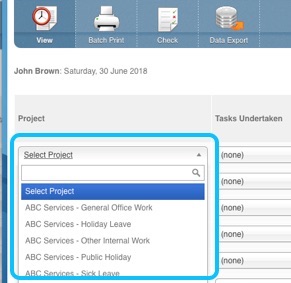
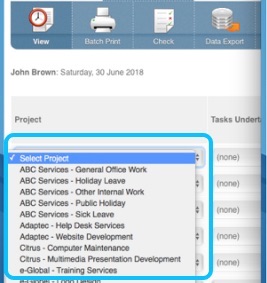
A new configuration option titled Drop Down Selection List Style has been added to the system under Settings | Time Entry. This option has been added so users who prefer keyboard entry over mouse can swap between the classic “Standard Drop Down Lists” available in previous versions and the new “Text Searchable Drop Down Lists”.
- New Text Searchable Drop Down List (Default): This style of drop down list has a powerful built in text search function. It is very useful if you have long lists of Projects and Tasks to choose from.
- Standard Drop Down List: This style of drop down list is the traditional simple drop down list. It works well with shorter lists and can sometimes be more efficient for quick keyboard data entry (as opposed to using keyboard and mouse).
PDF/EXCEL Processing Enhancements
The PDF and Excel export formatting options have had significant performance improvements so that they can now handle a lot more data than previously.
Timesheet Check Screen Enhancement

The Check Screen function located under Timesheets | Check can now be used to bulk send Staff a welcome email message with embedded tags for including their logon credentials.
The following tags are supported:
- Customer ID: [Customer ID]
- Logon ID: [Logon ID]
- Password: [Initial Password]
- Company Name: [CompanyName]
To use this functionality simply copy/paste the existing Staff Welcome Email text under Settings | Configure | Custom Text into the Send Reminder Email Message text box located in the footer section of the Check Screen.
Then by clicking on the Send Email Message button, the system will email each ‘selected’ staff member the Welcome Email Text message with their login details, saving the need to send a welcome message individually to staff.
New Generic Custom Table

A new Generic Custom table has been added to the database to provide more options for our developers to build Custom solutions to meet specific Client requirements.
Abbreviated Table Definition:
- [CustomID] [int] IDENTITY(1,1) NOT NULL x 1 field,
- VarChar1] [varchar](255) NULL x 6 fields,
- [Decimal1] [decimal](10, 4) NULL x 4 fields,
- [Integer1] [int] NULL x 4 fields,
- [Amount1] [money] NULL x 4 fields,
- [DateTime1] SmallDateTime NULL x 4 fields,
- [Notes] [varchar](4000) NULL x 1 field,
- [Status] [char](1) NULL x 1 field
Note: Separate web consulting fees are charged for setting up custom solutions.
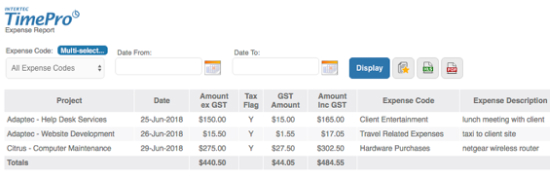
New User Expense Report
A new Expense Report has been added to the system and is available for General Users under Reports | Expenses. The report restricts the view of expense related information for that staff member’s records only.
OTHER ENHANCEMENTS/FIXES
- Disabled the ability to edit or delete the default *not yet assigned* entry for both MYOB Activities and QuickBooks Service Items as doing either of these causes errors when setting up staff project records.
- A fix has been applied to the Staff List Screen. The sort order for the Supplier column on the screen has previously been sorting on the Supplier Code instead of the Supplier Name.
- There has been a minor change to the alignment of rows in the Time Entry screen.
- A ‘hidden’ configuration option ‘Minimum Hours for the Time Period’ that checks the minimum number of hours that a Staff member must work within a period was in some circumstances failing validation due to a rounding issue. This was fixed by adding a tolerance of 0.01, which flags an error only if staff hours are 1 minute or more short of the set Minimum Hours.
- A fix has been applied to the Project Cost by Week Report. When outputting to XLS/PDF format the export did not work if a specific period was selected.
- A fix has been applied to the Unchargeable Project Summary Report. The export to XLS format was failing due to an issue with size of the duration column.
- A fix has been applied to the Chargeable Project Budget Summary Report. When the ‘Include Tax’ checkbox was selected and a date range was specified, the tax was not added to the calculated Period Amount.
- The Admin View of the Check Screen displayed the text “Staff Manager View” in the header. This has been removed from the Admin View only.
- The Drill-down option on the Check Screen now passes the Status flag. Previously all time records were being displayed on the Drill-down screen regardless of the Status filter selected on the Check Screen. Now if you filter on Status: ‘Pending’ on the Check Screen, then if you choose the Drill-down option you will only see time records that have a ‘Pending’ status.
- A fix has been applied to the Project Cost by Week Report. When a single week was selected the Excel and PDF buttons did not work. This has been fixed.
- The Scroll Wheel for Time Entry in the Compact Interface has been removed for Apple iOS. It will remain for Android users.
- Sessionless logins were preventing the system from capturing the local time. This caused issues for some overseas users as the incorrect day was being highlighted in the Timesheet View Screen. This has been fixed.
- PDF and Excel Batch Print and Report processing has been enhanced to operate in both Hosted (Cloud) and In-House environments.
- Batch Print and Reports in general when output to PDF format were failing when a large number of records were being processed. This has been resolved.
- The Microsoft Excel output of the Project Timesheet Report was missing the application Icon. This has been fixed.
- In-House users are required to open up their server to outside connections if they would like to use the Xero API Integration functionality.
- Corrected Page Title for MYOB Customers, MYOB Suppliers, MYOB Activities, MYOB Activity Edit pages. For example MYOB Customers was showing as 'AccSysCust'.
- Corrected Page Title for QB Customers, QB Suppliers, QB Service Items, QB Service Items Edit pages. For example QB Customers was showing as 'AccSysCust'.
- The width of the Expense Date column on the Expense List Screen was increased to prevent wrapping.
- Batch Print was missing date/time field.
- Icons at the start of the report names on the report menus were not linking to the selected report. These have been fixed.
- The Time Entry Screen has been updated to improve performance. This will be most evident in systems with a large number of Staff Project Records.
- The Timesheet Check screen has been enhanced to allow the sending of a greater volume of Emails > 600 emails is now possible to be sent.
Intertec TimePro v6.0.1 to v6.0.32
Major enhancements
Session Persistence
 The application has undergone a major internal restructure to give users session persistence, that is, the ability to remain logged in and active for extended periods - say goodbye to timeout messages.
Key Benefits:
- User sessions are now much more stable. As long as the web browser window is kept open, a session will persist for the session timeout period. The administrator specifies the Session Timeout Period, which may be up to 9999 minutes (slightly less than a week). Each users persistence interval starts from their last interaction with Intertec TimePro.
- Multiple logins on multiple tabs within the same web browser are now possible, and they will be kept entirely separate from each other. This will, for example:
- allow an administrator to have an administrator-privilege login in one tab and a login with low privilege in another tab to record personal time, or
- allow an administrator to administer more than one instance of Intertec TimePro at the same time, or
- allow a manger to run multiple authorisations side-by-side.
Re-styling of the Interface
The application has been re-styled to reflect a more contemporary look & feel.
The new interface not only improves the applications 'street-appeal' but information displayed on screens and reports is easier to read and icons added to action buttons make the overall application more intuitive for users.
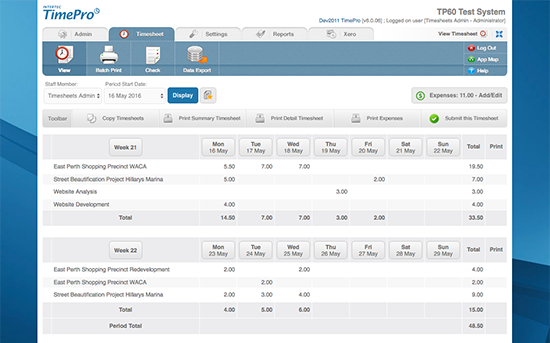
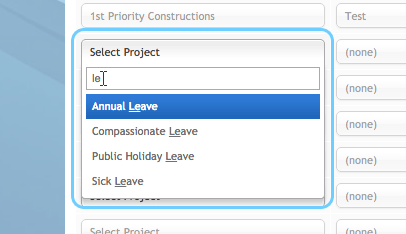
Filter/Search feature added to the Time and Expense data entry screens
A new combo box control added to drop down lists on the Time and Expense data entry screens allows staff to filter the list of values based on a text entry.
A powerful feature of this control is its ability to filter values in the list based on a partial text search.
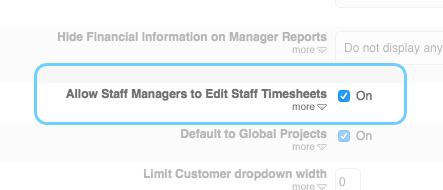
Allow Staff Managers to edit Timesheets
A new parameter 'Allow Staff Managers to Edit Staff Timesheets' has been added under Settings | General.
When enabled, this new setting allows Staff Managers to edit time records for staff they manage, including the ability to unlock staff timesheets if required.
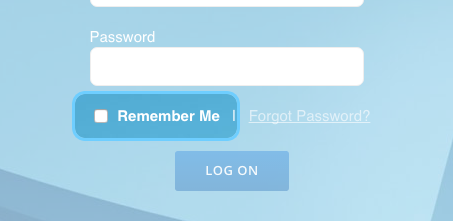
A "Remember Me" option has been added to the Login screen
By choosing the "Remember Me" option, subsequent opening of the login screen will bypass the entry of login credentials and the user will be logged in directly to Intertec TimePro.
This is particularly useful for users setting up one-touch login on their smartphones and tablet devices.
Note: The "Remember me" feature will bypass the login screen as long as the browser cookie remains.
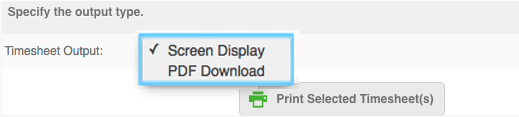
Ability for Batch Print to output Timesheets to PDF format
Batch printing to PDF was originally introduced in our previous release version 5.6.
In this latest release we have simplied the selection criteria to make the screen more intuitive for administrators.
Ability to output Reports to PDF and Excel formats
Reports in Intertec TimePro have in previous releases, been output to the screen or to a print-friendly format for hard-copy.
Reports now offer further options to be output to PDF format or to an Excel worksheet.
Improved performance for handling large numbers of Expense attachments
 The module to handle long lists of expense attachments on screens and reports has been significantly optimized and now takes a fraction of the time it used to take.
Time Data Entry enhancements for Smartphones and Tablets
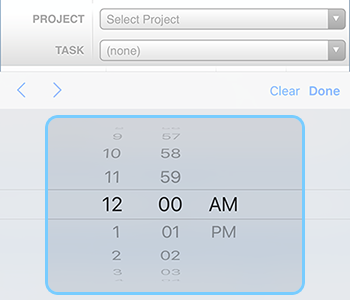
The Time Data Entry screen has been modified for compact devices such as smartphones and tablets.
What were previously displayed as time entry fields for start and finish times, now appear as drop down lists you scroll through to select times.
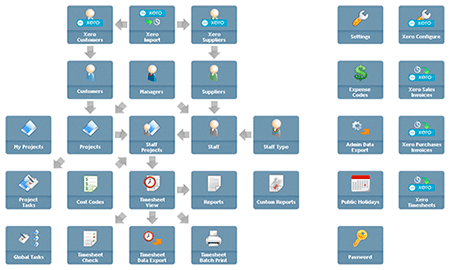
Revamp of the Application Map
The application map has always served as a useful alternative 'flattened-out' site navigation tool for accessing the applications menu options.
In this latest release the application map has been revamped to reflect more on how the application is used rather than how the menu options are linked.
OTHER ENHANCEMENTS/FIXES
- If a Project was copied, the Reference and Notes fields of linked Tasks were not being copied. These fields are now copied along with the other fields.
- The Timesheet > Check screen previously included the charge value of non-chargeable tasks in the displayed Chargeable Amount values. Non-Chargeable tasks are now included in the Non-Chargeable Amount values.
- In earlier versions of Intertec TimePro, it was possible in certain circumstances for the attempt to print a timesheet to clash with another user's attempt, and one of the users would have to retry. The print mechanism has been changed so that this is no longer possible, and every attempt to print a timesheet will succeed.
- Until Intertec TimePro version 6.0, the attempt to refresh a displayed timesheet would result in an error. It will now be re-generated, including any changes that might have taken place since the previous time it was displayed.
- Under some combinations of settings, the Chargeable Project Budget Summary Report had a column header misalignment. This problem has been corrected.
- A change to Apple's Safari browser caused the attempt to generate emails to fail. System administrators using Apple's browser and trying to request additional licences, along with users attempting to send emails to the administrator, had the feature fail with no notice given. An alternative approach is now taken to compensate for this browser-dependent issue.
- An issue has been fixed in the Data Export where the ‘Sales Value’ did not take into account the Task Chargeable flag. This meant that non-chargeable Tasks still had a Charge Amount.
- A fix has been applied to the MYOB Sales Time Billing Invoice export as the amount fields needed to be reduced from 4 to 3 decimal places.
- A fix has been applied to the Staff Cost Report. If you chose to include tax the drill-down was empty.
- View Timesheet data is now sorted by Project Description instead of Project Code.
- The ‘Print Summary Timesheet’ function on the Timesheet View Page displays the new standard signature block which includes the submit and authorise date/time stamp.
- The Manager authorisation block has been removed from the ‘Print Summary Timesheet’ and ‘Print Detailed Timesheet’ screens if the Authorisation is set to Project.
- The standard signature block with authorise date/time stamp has been applied to the Project Timesheet Report.
- A fix has been applied to the expenses screen. You can now upload multiple attachments with the same name.
- Signature Blocks now display in the date and time format chosen in the Period Control Settings.
- Staff Attendance Report now displays the date in the format chosen in the Period Control settings.
- Project Cost and Expense by Week for Period Report now displays the date in the format chosen in the Period Control settings.
- A fix has been applied to the Staff Project Screen. If you copy a Staff Project record and change the Staff Name the rate from the original record will be retained rather than the default rates from the Staff screen being applied.
- A restriction on a maximum of 100 data exports (admin + time/expense/attendance) has been removed.
- If normal user logon is disabled, the Authorise mechanism would disallow Authorisation. This is no longer the case.
- Fix for attendance times sometimes not showing correctly on the authorise time page.
- Logoff will now return you to where you logged on from rather than tplogin screen (as per v55 functionality).
- Project and Staff listing screens now perform an initial display of 500 or less records rather than the previous limit of 200 records.
- When printing old timesheets “pre submit and auth datetimestamp” era, the null date/times would cause the timesheet print to display a null error in the signature block. Now fixed.
- My Projects menu option moved from Settings Tab to Timesheet Tab, so more obvious to Users.
- Custom Report Links fixed - Correction to a problem introduced in 5.5, where custom report prefixes were sometimes not set correctly.
- Custom Staff Payroll Report Template has been developed to be used as a base for clients with complex Payroll data export requirements.
- Input time / input expense screens - Buffer flushing has been added to the Time Entry and Expense Entry pages to prevent “response buffer exceeded errors” when handling very large amounts of data.
- MYOB Purchases Invoice – the GST Amount field was being incorrectly calculated using the Charge Rate instead of the Cost Rate.
- Batch Print – When printing Staff timesheets they will be printed in surname,firstname order now instead of Staff ID order.
- TimeClock - Disabled text selection mode on keypad which would occur if someone pressed their finger for a long time.
- My Projects screen – New Customer drop down list has been added to the screen.
- My Projects screen – Validation of the Role field made consistent with the Staff Projects screen -> no special chars allowed.
- Staff Edit screen fixed to stop “Staff Logon as” from being cleared on the Manager record when a Staff record is edited. This happened when Auth was set to none in config options and Manager reporting was being used.
- My Projects – now inhibits email messages to managers with no email address.
- The Timeout has been increased on the Admin Data Export to resolve issue with a timeout error when exporting large data sets.
- The Staff listing and Manager listing screens were losing the filters set after a record was edited or viewed. This has been fixed.
- The Expense quick report could show the incorrect staff name depending on the order of the screens accessed. This has been fixed.
- Session Timeout Checking – previously users could stay connected longer than their session timeout setting as old session clean-ups were not actioned immediately. Now context expiry is checked on every page access. So if you have it set to 5 mins and you are inactive for 5.1 mins you should be immediately logged off at next access attempt.
- Project Task Admin screen has been updated to allow the display of 1,000’s of records
- The Staff Admin Screen was permitting the deletion of the current user's entry. The system now prevents you from deleting yourself.
- My Projects screen – Fix so that all Projects are shown for Staff member to select from when using the Customer filter. Previously there was a bug that was preventing display of first Project record in the selection list.
Intertec TimePro v5.6
Major enhancements
Xero Accounting Module (API) Integration
Intertec TimePro’s Accounting Integration Module has been enhanced to provide seamless API level integration with Xero.
Key benefits:
- Data Import - pull Customer, Supplier, Tax Codes, Account Codes and Tracking Categories from Xero into Intertec TimePro.
- Sales Invoices - prepare Sales Invoices in Intertec TimePro and push the data to generate Summary and/or Detailed Sales Invoices in Xero.
- Purchases Invoices - prepare Purchases Invoices in Intertec TimePro and push the data to generate Purchases Invoices in Xero.
- Timesheets - push time records from Intertec TimePro to generate Timesheets in Xero for Payroll processing.
More info here.
Time Clock Job Level Tracking
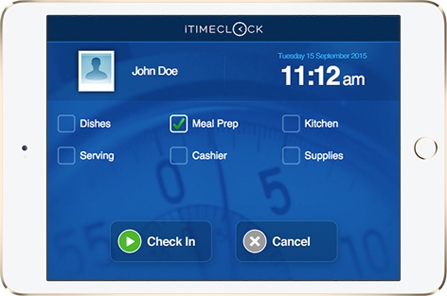
The Time Clock Tracking Level functionality has been enhanced to assign ‘Time Clock’ type Staff to multiple Jobs. Jobs appear as a series of Tiles on the Time Clock panel that staff can select when they clock in/out during the day.
Staff can be set up to have a different cost and/or charge rate on each Job they are assigned. There are several P&L reports available to management to track hours worked and costs by Job.
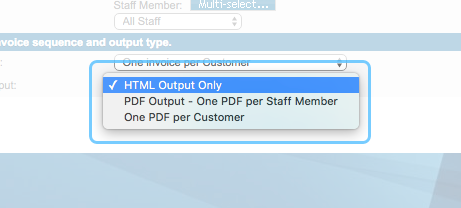
Batch Timesheet Print output to PDF format (saved to ZIP file)
The Timesheet Batch Print utility located under the Timesheet Tab is used by Administrators to print a batch of "Completed" staff timesheets to screen (HTML) or hard-copy.
In this latest release we have added the ability to output staff timesheets to PDF format.
There are the following two PDF Output options to choose from:
- One PDF per staff member
- One PDF per invoice
Timesheets output to PDF format are generated on the Server and downloaded as a ZIP file to your desktop.
OTHER ENHANCEMENTS/FIXES
- Fix for printing conflicts in WebCentral’s (Melbourne IT) Load Balanced Server environment.
Intertec TimePro v5.5
Major enhancements
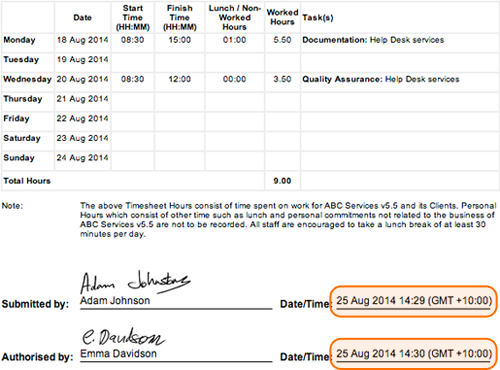
Submission and Authorisation Date/Times are now recorded for audit purposes
Intertec TimePro now captures, stores and reports on the date and time when staff submit their timesheets and when managers authorise timesheets.
The standard Intertec TimePro Timesheet Templates have been updated with the date and time values displayed to the right of the 'Submitted by:' and 'Authorised by:' lines. These can be seen in the bottom of the timesheet template shown the screen capture below.
Tracking, Reporting and Invoicing for Chargeable/Non-Chargeable Tasks
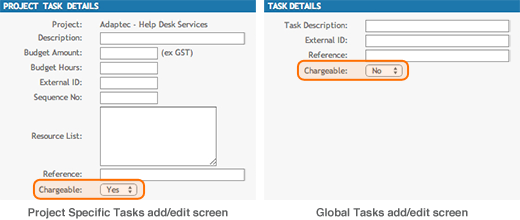
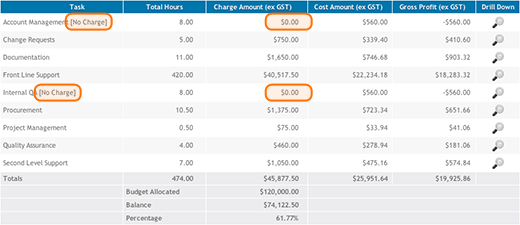
In previous versions of Intertec TimePro you defined a Project as either Chargeable or Non-Chargeable. In this new release it is possible to define a Task as Chargeable or Non-Chargeable. This change has impacted most of the screen, reports and exports in Intertec TimePro where Task related information is represented.
To facilitate this functionality a new Chargeable drop down has been added to the Project Specific Task and Global Task Screens as shown in the screen captures below.
Note: Tasks flagged as non-chargeable will be calculated based on a zero charge rate. If a project is defined as chargeable and a task flagged as non-chargeable, then the text '[No Charge]' is appended to the task description to make this clear on screens and reports. See example see screen capture below of the Project Task Report and highlight on the non-chargeable tasks.
Expense Attachments with Manager Review & Approval
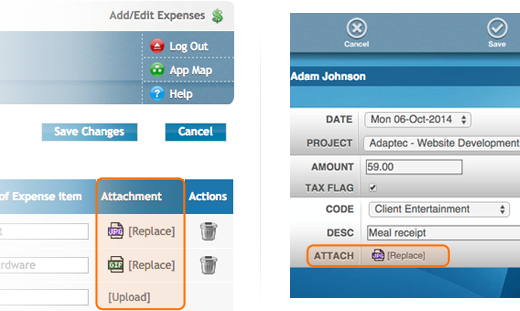
In our latest release we have added the ability for staff to upload and attach receipts and the like at the time of recording expenses. This facility is available in both the desktop and compact interfaces as shown in the screen captures below.
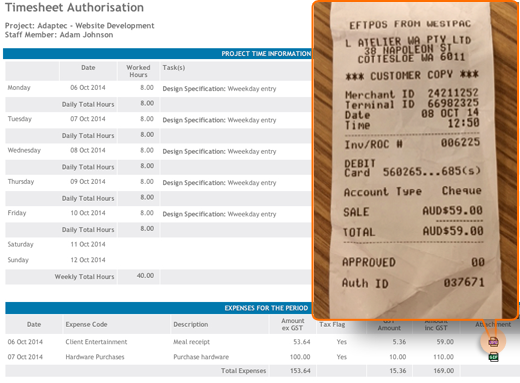
The functionality extends through to the staff timesheet submit and manager authorisation screens and processes. At the time of authorisation the manager can click on the attachment link to view each specific expense attachment. See timesheet authorisation and associated receipt attachment screen captures below.
Note: Intertec TimePro has a file upload size limit of 256kb - generally speaking you will be required to compress the photo before uploading. See instructions in the related FAQ topic here.
Ability to default your preference for Global Project/Staff assignment
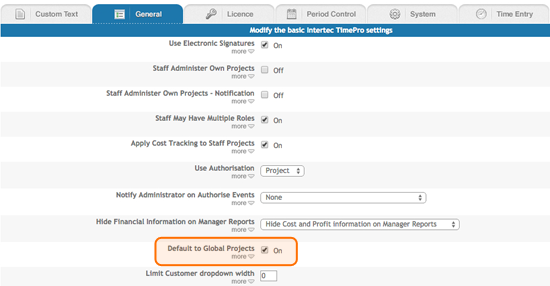
A new configuration parameter titled 'Default to Global Projects' has been added to the system and is located under the Settings > Configure > General tab. If the setting is 'On', the Default setting for the Global Projects field on the Staff and Project add/edit screens will be to use Global Projects. This is beneficial for Clients who by default want all staff automatically assigned to all projects.
If the setting is 'Off', the Default setting for the Global Projects field on the Staff and Project add/edit screens will be to NOT use Global Projects. Clients with this setting generally prefer to manually assign staff to projects.
Enhanced Password Security using Advanced Database Encryption
User password security has been significantly bolstered using industry best practice one-way Salt + Hash encryption to store passwords in the database.
Password verification is now case sensitive!!
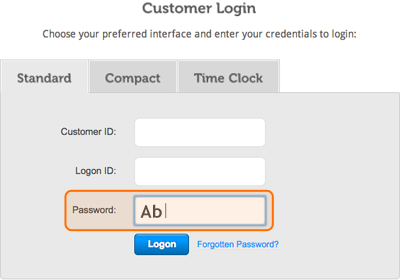
Once you upgrade to Intertec TimePro v5.5 the entry of your password will be checked for case sensitivity. If you are unable to login then we suggest contacting your system administrator and request that they reset your password. Then when you login again using the default password pay close attention to the case you use for typing in and confirming your new password.
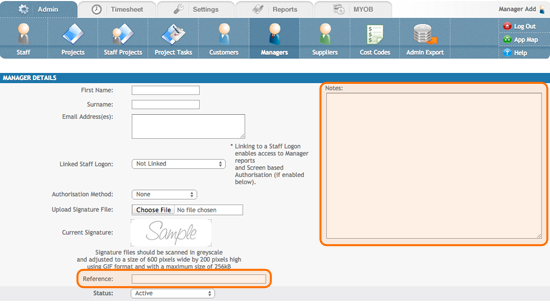
New Reference and Note fields on the Managers Screen
To allow the entry and storage of additional information, the Reference and Note fields added in our previous release have been extended to the Managers Screen in our latest release.
New Project Task Reports
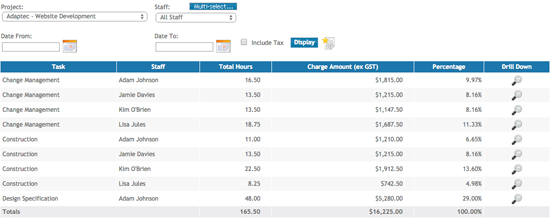
1. Project Task Summary by Staff Report
For a given Project this report provides a summary breakdown of total hours and charge amount by Task and by Staff. See screen capture below.
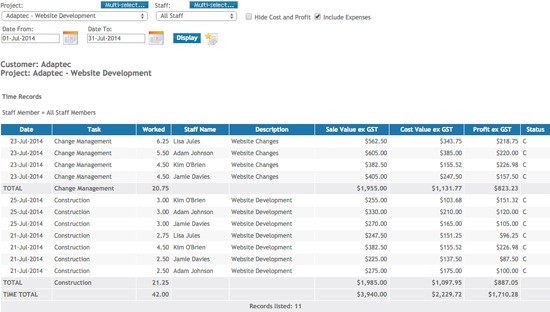
2. New Project Cost Detail by Task Report
For a given Project(s) this report provides a breakdown of total hours and gross profit figures by Task and by Staff with group totals by Task. See screen capture below.
MYOB MODULE ENHANCEMENTS
Integration with the latest MYOB releases
Intertec TimePro v5.5 will integrate with MYOB’s latest suite of AccoutingRight and AccountingEdge products for both the Australian and New Zealand versions of MYOB.
New Versions supported:
- MYOB AccountRight 2014
- MYOB AccountRight Plus 2014
- MYOB AccountRight Standard 2014
- MYOB AccountingEdge 2014
OTHER ENHANCEMENTS/FIXES
- Added Public Holidays to the system which can be enabled using a 'hidden' configuration parameter titled 'Enable Public Holidays'. Public Holiday tables and maintenance screens are Client specific.
- The Template option located under the Settings tab has been removed and the titles for the Timesheet Templates have been made more user friendly as follows:
- 'generic.asp' is now 'Start and Finish Times only'
- 'genericTask.asp' is now 'Start & Finish Times with Task and Description'
- 'genericHourly.asp' is now 'Hours Worked only'
- 'genericHourlyTask.asp' is now 'Hours Worked with Task and Description'
- Persistent column headers have been added to the majority of administrator listing screens. Now when you scroll-down the table headers stay with the table when they normally would be scrolled off the screen.
- The Image series skin theme has been modified so 'unselected' tabs on the application toolbar are more visible.
- The Project listing screen now populates on first entry without having to press the display button - this is consistent with the behaviour of the Staff listing screen. Both screens have been modified so that the auto populate only occurs if the number of records to be displayed is less than 200.
- Fixed a bug in the Staff multiselector pop up which only occurred if the user edited an existing list, and that list happened to not be in ascending order which resulted in a mismatch between values.
- Extended Xero Accounting Sales and Purchases Account Codes to 10 characters to adhere to Xero Accounting data definitions for these fields.
- Fixed a bug in the Expenses screen where the total calculation for the 'Amount Paid' column was coming up with an error caused when the Expenses total extended to 4 digits before the decimal.
- Fixed a bug in MYOB Activity Slips which occurred when you export time and expenses together in an Activity Slips export - the rate for the time record was being output as zero even though the option to “leave rates blank” had been chosen. The system now correctly outputs the Rate as Blank for both
- When generating Activity Slips in MYOB 2011 and later - MYOB would round values to 2 decimal places. This would produce zero values if blank values are requested. Rounding is now prevented when importing Activity Slips.
- In the Release Standard Page (Settings > Custom Report), the Report/Admin Page selection list is now consistent with the list of standard application reports.
- Fixed a bug where in certain situations the Data Export feature would fail to properly display the correct number of records to be output.
- Fixed a bug in the Batch Print which was applying restricted views when released to Managers. Managers now have the same unrestricted view as Administrators.
- Added a validation rule to the Timesheet Replicate function to prompt the user with an error If they attempt to replicate time to a future period that you cannot get to via the View Timesheet screen. Also Improved the associated validation message.
- Added a new 'hidden' configuration parameter titled 'Substitute Authorisation Email Details' which if enabled modifies the Email Sender Name and Subject Line for the Authorisation Required and Authorisation Cancelled emails as follows:
- Email Sender Name: [Company Name] - Intertec TimePro Administrator
- Email Subject Line: [Company Name] - Authorisation Required: [Staff Name] for dd-mmm-yyyy
- Fixed a bug where Check Managers and Auth Timesheets screens were not listing authorisations for staff who had recorded Expenses only.
- Added a new configuration parameter in the General category titled 'Default to Global Projects' which allows you to set the Default option for Global Projects on the Project and Staff maintenance screens.
- Enhanced the Managers screen to allow the recording of additional information in Notes and Reference fields.
- Fixed a bug in the Managers Authorisation functionality on the Staff and Managers screens - in some cases the electronic signature was not being refreshed following an update.
- Fixed a bug in the Managers Authorisation functionality where the signature was showing incorrectly following screen-based approval where the setup was such that there are multiple Manager records (with different signatures) linked back to same Staff login.
- Fixed a bug in the Sales Invoice Summary screen across all accounting modules. If a time record was recorded with zero or negative hours the sum calculated was showing as 'NaN' which stands for Not a Number.
- Added a lookup of Staff default cost and charge rates when manually assigning Staff to Projects
- Added the Expenses status column which now appears in the Expenses View Screen which timesheets for the period are locked.
- Enhancement to the MYOB Activity Slips Export - added two additional columns that allow this screen to export time records as both Activity Slips and Timesheets. Applies only to MYOB versions 2011 and onward. The user should choose 'Auto Match' instead of 'Match All' when selecting which fields to map in MYOB.
- Enhancement to the Xero Sales Invoices Export - added a new Inventory Item drop down selection list.
- Enhanced the look and feel of the Authorising Managers approval and rejection screen messages.
- Added Reference and Note fields to the Project Tasks import screen.
- Enhancement to the MYOB Activity Slips Export enhancement - fields which previously output NULL values as "(no xxx present)" now output blank values instead.
- Fixed a bug in the Check Times screen which was failing to display Expenses for Projects which had no time records.
- Enhancement to the Compact interface which now shows only 2 blank time and expense entry rows by default.
Intertec TimePro v5.4
Major enhancements
New Timesheet Authorisation Screen for Managers and Administrators
Managers can be setup to have access to authorise timesheets via the new Authorisation screen. This is done by editing a Manager record, linking that Manager to a Staff Logon and then setting the Authorisation Method to include Screen access.
Administrators can also be setup to have access to authorise timesheets via the new Authorisation screen. This is done by giving the required Administrators “Authorisation Override” capability, as described in the next section.
The Authorisation screen will appear as a new tab within the Check toolbar option as shown in the screen capture below.
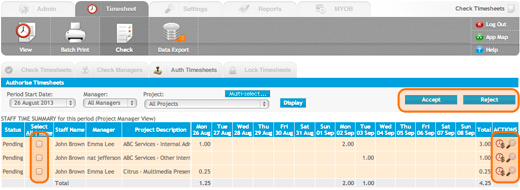
Note: For Managers the new Authorisation Screen will appear for either Project or Staff Managers depending on how you have authorisation configured in Intertec TimePro.
Key Benefits:
- Administrators and Managers can do bulk approval/rejection of staff timesheets for a given period.
- Quick access to view the staff timesheet plus a link to the standard drill-down function for a detailed listing of time and expense records.
- Administrators can filter based on ‘All Managers’ or a selected Manager. Managers see their pending authorisations only.
- Administrators can filter pending authorisations based on ‘All Projects’ or a selected Project.
- Project Managers can filter pending authorisations for Projects they manage.
- Staff Managers can filter pending authorisations for Staff they manage.
- If an Administrator authorises another Manager’s timesheets, then the Administrator is recorded as the authoriser of the time records for auditing purposes.
New Authorisation Override Capability for Administrators
Administrators can now be flagged on the Staff screen to be allowed to override timesheet authorisations.
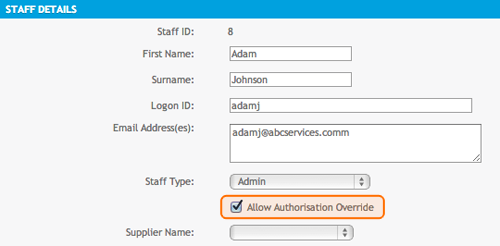
Administrators who have been flagged to ‘Allow Authorisation Override’ are prompted with the option to bypass manager authorisation when they submit a staff timesheet. If they choose to bypass manager authorisation then the status of the timesheet is set to ‘Complete’ and the Administrator is recorded as the authoriser of the time records for auditing purposes. If they choose not to bypass manager authorisation of the timesheet then the system behaves as usual by flagging time records that need to be authorised as ‘Pending’ and notifying Managers.
Administrators who have been flagged to ‘Allow Authorisation Override’ will also have access to the new Authorisation screen described in the section above. Using this screen Administrators will have the ability to Authorise or Reject all ‘Pending timesheets’ within the system.
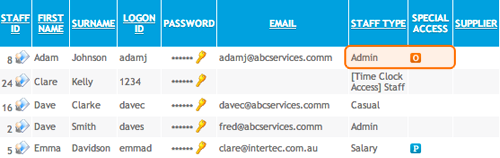
A new column titled ‘Special Access’ has been added to the Staff List screen with a specific ‘O’ indicator to easily identify Administrators who have been given Authorisation Override access. There are also indicators of ‘P’ for Project Manager and ‘S’ for Staff Manager in this new column to indicate which Staff Logons have linked Manager records, thus easily identifying Staff that have extended manager reporting and/or authorisation capabilities.
Enhanced Check Timesheets Screen
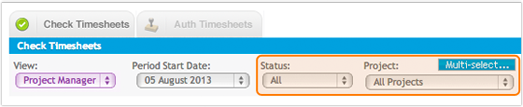
- Project Managers - The Check Timesheet Screen has always been a useful tool for Administrators to view staff hours for a period and to chase staff for incomplete timesheets. Project Managers can now access the Check Timesheet Screen providing them with a view of hours recorded against their Projects during a time period. They are also able to check if staff have submitted their timesheets for that period with links to the standard drill-down function and access to a project timesheet report for more detail.
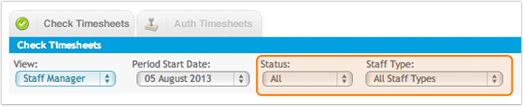
- Staff Managers – The Check Timesheet Screen was released to Staff Managers in v5.3, however we have enhanced the screen for Staff Managers in v5.4. We have added a new status drop down as well as a link to a staff timesheet report for more detail.
- Administrators – The Check Timesheet Screen has been enhanced in v5.4. We have added a new status drop down as well as a link to a staff timesheet report for more detail.
- Second Level Authorisation - Organisations setup for Project-based authorisation can implement a second level of timesheet authorisation, if required, by also allocating Managers to Staff members. Once the Project Managers have completed their timesheet authorisations then the Staff Managers can do a final review and if necessary reject the staff timesheet(s) using a new authorisation ‘Reject’ button added to their Check Timesheet Screen.
- Dual Views - In the case where a person is both a Staff and a Project Manager, the Check Timesheet Screen will display a ‘View’ drop down with options for the Manager to switch between the Staff Manager and Project Manager View.
New Compact Interface
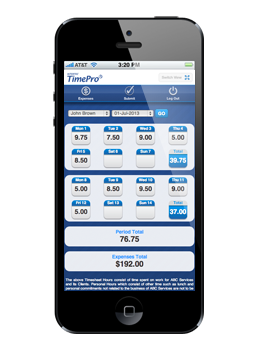 We have completely revamped our Compact Interface for time entry using smartphones and other mobile devices. The new Compact Interface not only looks great with the carry-over of colour schemes from the Desktop Interface but more importantly Compact offers core functionality for a mobile workforce including time and expense entry as well as the ability to submit timesheets for authorisation.
Compact Interface features include:
- Secure login
- Weekly and daily timesheet view
- Time and expense entry
- Time entry validation
- Timesheet submit
- Start/Stop time recording
- Maintain active session
- Colour schemes and themes
- Ability to quickly and easily switch between Compact and Desktop Interface
- Support for smartphones running industry standard web browsers
The Compact Interface is also available directly from the Desktop Interface using the ‘Switch View’ button located in the top far right of the Timesheet View screen as highlighted in the screen capture below.
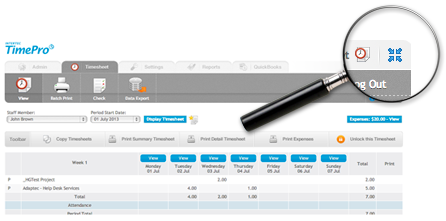
The ability to switch views from the Desktop Interface means that users now have the option to choose an alternative Compact Interface for time tracking. The ability to maintain an active session coupled with start and stop timers makes Compact a useful desktop tool for continuous time entry on multiple projects and tasks during the day.
New Reference and Note Fields for Staff, Projects, Tasks, Customers and Suppliers
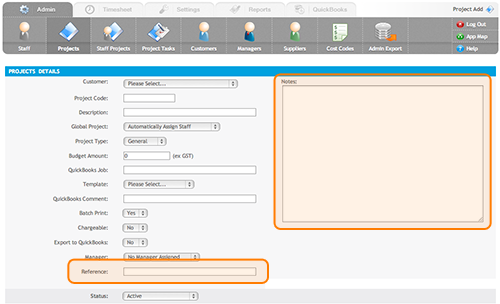
To allow the entry and storage of additional information, Reference and Note field are now available on all key entities including Staff, Projects, Tasks, Customers and Suppliers.
New Start/Stop Timers on the Time Entry Screen
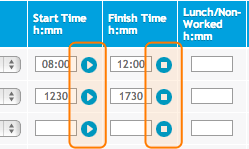
Start and stop timer buttons are now available on the time add/edit screen.
If your system is configured to use start and finish times then by clicking the start button the system will automatically insert the current time as the Start Time. Once you have completed your project/task then click the stop button to have the system insert the current time as your Finish Time. |
 |
|
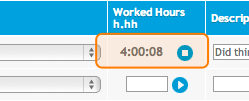
If your system is configured to use entry of hours worked only then by clicking the start button the system will start a timer on the screen inside the Worked Hours field. The timer will continue to tickover every second until you press the stop button. Once you press the stop button the system will insert the time spent in the Worked Hours field. |
 |
You can start a new timer on a second project/task which will then automatically stop the previous timer.
Note: Start and stop timers are supported on both the Desktop and Compact Interface.
 Enhanced Manager and Audit Reporting
One of the major benefits of email authorisation has and still is the fact that the manager can simply click on an embedded link in an email to view the staff timesheet and accept/reject the timesheet.
However if a pending authorisation email is subsequently forwarded to another manager to authorise then we don’t have the information required to track the manager who may have approved the timesheet and so the originating manager is captured as the authoriser in this case.
With the introduction of screen based authorisation requiring a login we have enhanced the auditing of the timesheet authorisation process for capturing the manager who did the actual approval. This is especially important as Administrators can now access the Authorisation screen to approve/reject timesheets. We have also added the ability for Managers to override pending authorisations if they need to intervene and submit a staff timesheet.
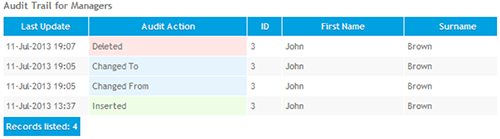
In addition the auditing function now captures a snapshot of the changes before and after. The audit reports present this information in ‘Last updated’ date order using colour coding to easily identify the event that took place, i.e. Insert, Change (from/to) or Delete.
Implementation of SSL Data Encryption to strengthen Application Security
Intertec TimePro application is protected with the latest in SSL security - business identity authentication and strong 256-bit encryption with a 2048-bit root - technical terminology giving you peace of mind that the application is communicating securely over the Internet.

 Option of Microsoft Active Directory Integration for In-House Systems
If your organisation uses Microsoft Active Directory for organizing and managing users on your network, then Intertec TimePro can leverage your MS Active Directory to authenticate and authorise user access to Intertec TimePro deployed on your network.
MYOB MODULE ENHANCEMENTS
Integration with the latest MYOB releases
Intertec TimePro v5.4 will integrate with MYOB’s latest suite of AccoutingRight and AccountingEdge products for both the Australian and New Zealand versions of MYOB.
New Versions supported:
- MYOB AccountRight 2012,2013
- MYOB AccountRight Plus 2012,2013
- MYOB AccountRight Standard 2012,2013
- MYOB AccountingEdge 2012,2013
OTHER ENHANCEMENTS
- The Project Timesheet Report now defaults to the date range previously selected for other reports. A check box was also incorrectly labelled ‘Add Task’ on this report. This has been corrected to ‘Add Description’.
- The Staff Admin page text search has been extended to include additional fields such as the Logon ID.
- Fixed an issue with MS IE 10 causing the calendar control on reports to display the wrong century.
- The column previously labelled Authorisor in the Audit Trail Report is now labelled Manager.
- Performance of screens such as the time add/edit, check times and staff time tracking report has been significantly improved for large datasets.
- The Cost Code Summary report displayed the heading ‘Percentage ex GST’. The reference to the tax code has been removed and now reads as ‘Percentage’.
- Intertec TimePro has always suppressed the display of zero hours. In some contexts zero hours are now displayed as 0.00. This is particularly the case on timesheets for week and period totals, and in other contexts it indicates a zero-time entry.
- The View Timesheet screen attempts to compensate for errors in the clock of a remote machine when calculating time-zone offsets which in the past under rare circumstances could result in the wrong day being highlighted as the current day. This has been fixed.
- In the Project multiselector dialog box a dropdown was labelled ‘Status’, and, since it could refer to either Customer or Project status. The dropdown list is now labelled ‘Project Status’ to avoid any ambiguity.
- Admin screens and reports with large result lists would occasionally exceed the size of the Web server’s output buffer. The buffer is now flushed periodically to prevent buffer overflow failures.
- In very rare circumstances the timesheet authorisation emails would include links which did not lead the authorisor to the correct data, and instead said that ‘no data could be found’.
- The release of admin features to view and edit tables sometimes resulted in the edit privilege not being granted, particularly in the case of the ability to edit other users’ time records.
- The code which detects concurrent sessions and allows recovery now automatically cancels the existing session and starts a new one.
- The Project Task Budget report now includes time for which no Task is assigned.
- TimeClock now supports time capture across multiple locations.
- A new configuration option has been added to disable the display of financial values (charge and cost rates) on reports released to Managers.
- A new column titled ‘Special Access’ has been added to the Staff listing screen with indicators for Authorisation Override and Manager access.
- Accounting system Integration:
- Exports now offer many more options in the drop downs for deriving values from key tables including Staff, Customers, Suppliers, Projects, Tasks (note options do vary for different accounting systems).
- QuickBooks timesheets export could under very specific circumstances summarise rather than displayed individual time records. This has been fixed.
- The Accounting System Import could fail if some fields were not present in the import file. The function has been made more robust.
- QuickBooks Class now added as a drop down option in the QuickBooks Timesheet and Expenses export screen.
Intertec TimePro v5.3 (June 2012)
Major enhancements
 New Manager Reporting
Managers now have access to comprehensive reporting functions, allowing them to track their Projects and manage their Staff by providing accurate and timely hours worked,project charge amounts and budget information. Optionally, Intertec TimePro can be configured to provide managers with internal cost and profit information in circumstances where this is deemed appropriate.
Project report information will be limited to only the projects the Project Manager has been assigned to. These reports include:
- Chargeable Project Budget Summary Report
- Project Cost Report
- Project Cost and Expense by Week Report
- Project Cost and Expense by Week For Period Report
- Project Cost Detail Report
- Project Cost By Week Report
- Project Cost Code Report
- Project Role Report
- Project Task Report
- Project Task Budget Report
- Project Timesheet Report
- Unchargeable Project Summary Report
Likewise Staff Managers can only view information relating to the staff they manage. Staff Reports include:
- Staff Cost Report
- Staff Cost By Week Report
- Staff Cost Detail Report
- Staff Summary Report
- Staff Time Tracking Report
- Staff Utilisation Summary Report
Staff Managers can also access the Check Timesheets function to view hours recorded by their staff during a time period. They are also able to check if staff have submitted their timesheets for that period.
The new Intertec TimePro Management Reporting function is extremely flexible, providing individual Project and Staff reporting functions to be assigned to any existing manager on an “as required” basis. It also provides the ability to delegate a given Manager’s report access to other users, should the need arise. What’s more, Intertec TimePro also allows the same Manager to be assigned as both a Project Manager and a Staff Manager allowing them to conduct their Project and Staff management roles in parallel.
 Intertec TimePro integration with Xero Online Accounts
Intertec TimePro now integrates with Xero Online Accounting.
Using the new Xero Accounting Integration module, Intertec TimePro Administrators can regularly import Accounts Receivable and Accounts Payable information into Xero based on invoice data calculated within Intertec TimePro.
Linking Customer and Supplier records between Intertec TimePro and Xero is easy. Administrators can simply import Xero Customer and Supplier information directly into Intertec TimePro at any time.
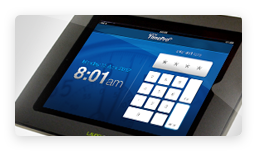 Time Clock Interface
With Intertec TimePro’s Time Clock Interface you can setup a web-based Time Clock on virtually any device that supports an industry standard web browser and is connected to the Internet.
Time Clock Interface features include:
- Secure numeric pin entry
- User-friendly interface and confirmation dialogues
- Support for virtually any Internet connected device that supports an industry standard web browser
- Integrated with Intertec TimePro web time management solution
For more please view the Time Clock Interface
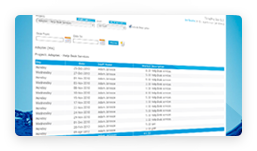 New Project Timesheet Report
The new Project Timesheet Report presents timesheet data for times recorded by Staff on one or more Projects. Report data can be limited by a date range, with the option to select multiple Staff and multiple Projects on which to report.
This new report provides an excellent way to produce multiple hardcopy timesheets based on user selection criteria.
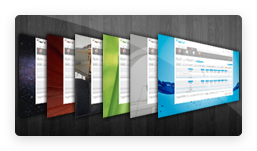 New Intertec TimePro Colour Schemes
In version 5.3, we've added even more colour schemes to allow you to further customise the way Intertec TimePro looks, giving you the ability to more closely align Intertec TimePro with your own corporate "look and feel".
Have a look at the new "Image Series" colour schemes. These schemes have more subtle colourings and use high quality background images to portray a given theme, identity or brand.
Perhaps you have a particular image that you would like to use for the background instead of our standard offerings? If so, we are more than happy to assist with your individual corporate identity and branding needs. Please contact our support centre to discuss your needs.
MYOB MODULE ENHANCEMENTS
Integration with the latest MYOB releases
Intertec TimePro v5.3 will integrate with MYOB’s latest suite of AccountRight and AccountingEdge products for both the Australian and New Zealand versions of MYOB.
New Versions supported:
- MYOB AccountRight 2011
- MYOB AccountRight Plus 2011
- MYOB AccountRight Standard 2011
- MYOB AccountingEdge 2011
OTHER ENHANCEMENTS
- The Session Refresh Period configuration setting now applies to all screens within the Intertec TimePro application, whereas previously it only applied to the View timesheet screen. This feature will now allow you to have any Intertec TimePro screen open for extended periods of time, avoiding session timeouts and the need to logon again. This setting can be found in the Configuration Settings under the System tab.
- Handling multiple email addresses on the Staff and Manager screens has been improved.
- Improved behaviour in timesheet authorisation staff email processing. If email recipients do not have an email address, then authorisors will be notified that they will need to contact the staff member in another way.
- The Chargeable Project Budget Summary Report has been enhanced to include Expense information.
- For systems setup to use Staff based Authorisation, the Manager Authorisation screen now displays Project descriptions for any Expense items that are listed.
- The existing Lockdown Date validation rules, previously applied to restrict the editing of individual time and expense records, or unlocking of timesheets, has been extended to other Intertec TimePro processes that can affect time and expense records, such as the deletion of a Project and the making of Bulk Changes on the Staff Projects screen. The Lock Down date must now be adjusted before Project deletions and Bulk Changes are made, to be earlier than any affected data, thus providing another layer of protection for your valuable Intertec TimePro data.
- An additional Time Entry Configuration option has been added to the system, so that you are now able to prevent the pre-selection of the last used values on the Time and Expense entry screens.
- The Project, Staff Projects and Project Tasks admin screens now remember your current Staff and Project selections when navigating between these screens.
MINOR CHANGES & MISBEHAVIOURS CORRECTED
- Corrected the misalignment of first heading on the MYOB and QuickBooks Activity Slips and Time Sheets export.
- Improved Expense entry screen code to prevent data write issue if expense screen is opened in one window and user changes the default period in a second window within the same session.
- Improved login/logout behaviours in the Compact Interface.
- Improved date format validation controls.
- Addressed rounding issue in the total on the Expense entry screen.
- Custom Pages Release - Admin pages have been modified to remove the Add/Edit/Delete/Copy/Import options if the person has not been given access to them as well as the listing.
- Timesheet Submission - When authorising timesheets, an authorisor for expenses only, was not found, unless the staff member had a previous time record for the same project. The query has been changed to find them correctly.
Intertec TimePro v5.2 (January 2011)
Major Enhancements
- Quickbooks Integration
Intertec TimePro has been significantly enhanced to integrate with QuickBooks for invoicing and timesheets. You can now: - Import Quickbooks Customers and Suppliers into Intertec TimePro to set up your Intertec TimePro Customer and Supplier records.
- Export time records and expenses as QuickBooks Invoices, Bills, Timesheets and Expenses.
- Time Entry Replication
Time recorded for a given day can now be copied to one or more other days via an Advanced Options link at the bottom left of the Time Entry screen. This new feature can be enabled/disabled via a Configuration option in the Intertec TimePro Settings. This is a quick and convenient way to save time if users have to enter the same times across a number of days or weeks. For example entry of extended holiday leave. - Intertec TimePro Co-branding
Co-branding gives you the option of having your company logo appear in the Intertec TimePro application. Co-branded systems will display your company logo, followed by the caption "powered by Intertec TimePro". While a select few of our Intertec TimePro v5.1 customers adopted an earlier version of the co-branding functionality, the Intertec TimePro v5.2 upgrade builds on the technology in that the feature has now been fully implemented to include co-branding across Intertec TimePro screens, timesheet templates and standard reports. Note: Consulting fees apply for co-branded Intertec TimePro systems. - Intertec TimePro Data Exports
Major improvements have been made to the Intertec TimePro Data export function, which now allows you to create and save data exports to re-run at later dates. In addition to the Time and Expense data exports, you can now also export Attendance data. - To export Time, Expense and Attendance data, look for the Data Export icon under the Timesheet tab.
- To export Intertec TimePro Admin data, look for the Admin Export icon under the Admin tab.
- Check Manager Authorisations
A new "Check Managers" function has been added to the Timesheet-Check screen to resend Managers any pending authorisation emails for timesheets. This circumvents the previous workaround of unlocking and re-submitting staff timesheets in order to resend the authorisation emails. - Forgotten Password Reset
Users who have forgotten their passwords can now reset their passwords for themselves without having to contact their Intertec TimePro administrator. - New Staff Cost Detail Report
A new Staff Cost Detail Report has been created which is similar to the existing extensively used Project Cost Detail Report but is Staff-focussed rather than Project-focussed. - New Multi-Tab Configuration Settings Screen
The Intertec TimePro Configuration Settings screen has been made more user-friendly via an enhanced tabbed interface. - Improved Global Projects
Staff which had not previously been allocated to Global Projects can now be assigned to Global Projects, and Intertec TimePro will retroactively create the relevant Staff Project Records allocating Staff to all Global Projects.
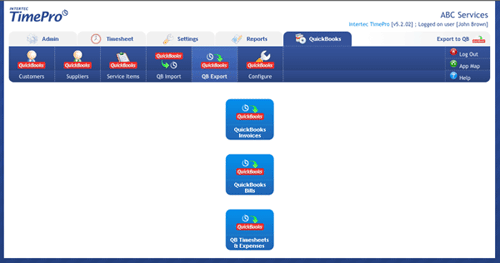
Quickbooks Integration screen.

Time Entry Replication screen.
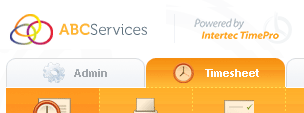
Intertec TimePro Co-branding.
You can also edit existing saved Exports, or make a copy of an existing saved Export.
Note: As part of this upgrade the location of the Data Export functions in Intertec TimePro has changed:
All Data Exports (Time, Expense, Attendance and Admin) now also include multi-selectors that allow you to select from multiple Customers, Projects, Managers, Staff and Staff Types.
Furthermore, MYOB/Quickbooks related fields are now available for export if the Third Party Accounting System Integration Module is enabled.
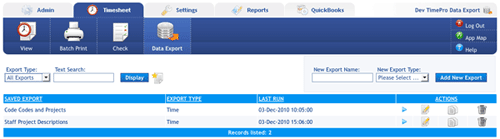
Intertec TimePro Data Exports.
Note: The Check Timesheets screen has now been revised to make use of a tabbed interface. Administrators can now choose to Check Timesheets, Check Managers or Lock Timesheets.

Check Manager Authorisations.
Clicking the reset password button in the login screen will transfer the User to a screen where the User enters their Customer ID and either their logon ID (username) or email address. Users are then sent an email with a link to enable them to reset their password themselves.
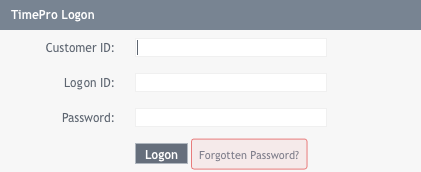
Forgotten Password Reset.
Each Configuration Setting category is now represented by its very own Tab. Click on a Category Tab to view the configuration settings in that category.
This tabbed interface makes it easier to quickly configure your Intertec TimePro settings. You can make multiple configuration changes across different Categories all at once, and then click the Save Settings button to commit the changes you have made. The background colour of each changed configuration alters after you have changed its setting to give you a visual indication of configuration settings which have been edited.
When you finally choose to save the changes you have made, a list of settings that have been changed is shown in a pop up confirmation window prior to Intertec TimePro saving the changes.
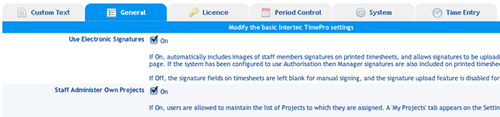
New Multi-Tab Configuration Settings Screen.
Similarly, existing Intertec TimePro Projects which were not previously marked as Global Projects can now be set as Global Projects, and Intertec TimePro will retroactively create the relevant Staff Project Records allocating Staff to this Global Project.
This is a significant enhancement on the way Global Projects previously functioned (previously, Staff Project records were only automatically assigned when a new Staff or Project record was created - not when they were edited).
Minor Enhancements
- Project Lists and Multi Selectors
Project selection lists in reports now show the disabled Projects at the end of the list flagged with a different background colour. Reports which have a project dropdown with the new multi-selector now only show active Projects by default. In addition, new multi-selectors for Staff and Projects have been introduced on many reports/exports and the Batch Print screen. - Full description text displayed in Time and Expense entry screens
The full Description text can now be viewed in a pop up when you move your mouse pointer over the Description field in the Time Entry or Expense Entry screens. This lets you read the full Description without having to click on the Description field and scrolling through the text entered there. - Date Selection on Reports
To improve the usability of reports, Intertec TimePro now remembers and defaults to the most recent date range entered in reports during a given session. - Auditing of Tasks
The Audit module and Report has been updated to track inserts, deletions and changes to Global Tasks and Project Specific Tasks. - Accounting System Selection
You can now select your Accounting System from the Intertec TimePro System Configuration settings. Choose between MYOB or Quickbooks. - New Alert Message if System has been Disabled for Normal Users
Should the "Normal Users May Access" configuration setting be set to Off, Intertec TimePro will display a constant message informing Administrators that access has been set to Admin users only.
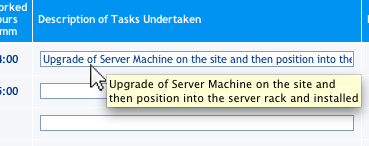
Full description text displayed in Time and Expense entry screens.
MYOB Module Enhancements
- MYOB Integration Module
We have updated the Intertec TimePro MYOB Integration Module to enable integration with the latest range of MYOB Accounting and Business Products, including: - MYOB Account Right Standard 19x (Australia)
- MYOB Account Right Plus 19x (Australia)
- MYOB Account Right Premier 19x (Australia)
- MYOB Account Right Enterprise 19x (Australia)
- MYOB Accounting Edge 9x
- MYOB Account Right Standard 19x (New Zealand)
- MYOB Account Right Plus 19x (New Zealand)
- MYOB Account Right Premier 19x (New Zealand)
- MYOB Account Right Premier with Payroll 19x (New Zealand)
- MYOB Account Right Enterprise 19x (New Zealand)
- MYOB Accounting Edge 9x (New Zealand)
- Enhanced MYOB Activity Slips Export
The MYOB Activity Slips Export has been extensively enhanced to now give you the ability to export Expense records as well as Time records. In addition, many new options have been introduced to allow significant flexibility in the mapping of fields between Intertec TimePro's available fields and the MYOB Activity Slips fields. - The ability to export Expense records as Activity Slips.
- More options for content to be included in the Notes field (now extended to optionally include Project Description, Task External ID and the MYOB Line Item Order).
- The option to select the Value to be supplied as Rate in the Activity Slips Export. You can choose to use the Project Staff Charge Rates stored in Intertec TimePro, or to use the Rates stored in MYOB.
- Options for values to be supplied as Activity ID, MYOB Job and MYOB Payroll Category now include: Projects MYOB Job number, Staff Projects Cost Code, Staff Projects Description, Staff Projects MYOB Activity ID, Staff Projects Role, Staff Reference, Task Description, Task External ID or a value entered by the Admin User.
- Multiple Customers, Projects, Staff, Staff Type and Expense Codes can now be selected for the same Activity Slips export (previously, single selection or all was only available for each category).
- The various export selections that you choose are now saved for when you next run the export.
- MYOB Customers and Suppliers
When a MYOB Customer or MYOB Supplier record is created manually (ie. not via importing from MYOB), you can now select to generate the corresponding Intertec TimePro Customer or Supplier record automatically.
Key enhancements include the following:
Minor changes and misbehaviours corrected
- If one or more Time or Expense records are deleted, TiimePro will display a message reminding the User to save the timesheet in order to record the deletions.
- All reports now default to the last date range used.
- Standard Report Release Custom Report Release screens now restrict the kinds of characters that can be used in the Group and Title fields (to prevent illegal characters affecting access to the reports).
- Customer Edit screens now restrict the types of characters allowed in Customer names to prevent illegal characters affecting the way the Customer records are handled by Intertec TimePro.
- Browser restrictions have been removed from the MYOB Invoice Export function. In the past, there were problems with certain browsers and their ability to hide and reveal blocks of details, specifically the invoice line detail. Current browsers now do this correctly; verified for IE8 , Firefox, Opera, Safari, Chrome.
- Improvements have been made to the way Intertec TimePro handles the drilling down to the Staff Project screen from the Staff or Projects listing screens. You can now view the Staff Project records for disabled Staff or Projects - the Staff or Project is displayed with [OBSOLETE] in the relevant drop down menu to indicate their Disabled status.
- Improvements have been made to the way Intertec TimePro handles the drilling down to the Project Task screen from the Projects listing screen. You can now view the Project Task records for disabled Projects - the Project is displayed with [OBSOLETE] in the relevant drop down menu to indicate its Disabled status.
- A minor technical issue with [External Access] Customer and [External Access] Supplier records, which prevented these user types from accessing the system if the Customer or Supplier name was changed, has been rectified.
- [External Access] Customer and [External Access] Supplier records in the Staff record listing no longer include a graphic link to the Staff Project records associated with this Staff Type (as these Staff Types are not attached to any Projects).
- The Staff Edit screen is edited to show the Notify Staff checkbox regardless of whether it's a new record, edited record or copied record. Moreover, the checkbox defaults to checked for a new Staff record or copied record.
- Reports which show a project dropdown and which do not have a multi-select function now list all Active Projects first, followed by Disabled Projects.
- The Expense Entry screen has been enhanced to display recorded Expenses in Date/Project Order.
- The Attendance and Period Attendance Total rows in the View Timesheets screen have been highlighted to differentiate them.
- Charge and Cost rates can now be entered with up to 4 decimals places rather than the previous 2 decimals places. A significant benefit of this is for customers that use daily billing rates which can now be represented more accurately as hourly billing rates.
- Minor improvements made to the coding of Staff Type to allow for the use of apostrophes in Staff Type Description.
- A new General Configuration Setting is available, which lets Administrators control whether a logo is visible in the the print timesheet templates (Project Timesheets and Detailed Timesheet templates).
- The formatting and layout of the Project Task Budget Report has been improved.
- The Description field in the Time Entry screen now expands or shrinks to fill the available space, making the screen more aesthetically pleasing and more useable especially when limited columns of data are displayed.
Intertec TimePro v5.1 (November 2009)
- Project and Staff multi-selector A new multi-selector tool has been added to a number of Intertec TimePro reports which gives Intertec TimePro Administrators the ability to select a range of Staff or Project record values for inclusion in one report. The multi-selector is presented in a new pop-up screen, where the user can select multiple values for reporting purposes (see screenshot).
- Staff Cost by Week Report
- Project Budget Summary Report
- Project Cost Detail Report
- Project Task Budget Report
- Expense Report
- Cost Code Report
- Customer and Supplier access to Intertec TimePro You can now create logins for external customers and suppliers, giving restricted view access to data via a few selected Intertec TimePro reports. Customers can view details recorded against their Projects and Suppliers can view details recorded against their contract Staff.
- Customers will only be able to view charge/sale rates and totals but not costs and profits.
- Suppliers will only be able to view cost rates and totals, but not charge rate and profits.
- Configurable field width of drop-down lists in Time Entry and Expense Entry screens Intertec TimePro v5.1 enhances the configurability to the Time Entry screen even further.
- Simplified, easy-to-use Custom Page/Report release The operation that allows Intertec TimePro Administrators to release standard Admin-only pages and reports to normal Users has been enhanced, allowing Administrators to use a user-friendly menu interface to select the User (or category of User), along with the pages they want released to non-Admin user/s.
- The name of the report/page you would like to release, and
- The user access level: All staff, Staff Type or individual Users.
- Faster system performance Improvements have been made to the way drop down menus and lists are populated in various Time and Expense Entry screens. These result in faster response times when these screens are accessed, in particular where there are long lists of Customers, Projects and Tasks that need to be populated in these menus.
- Automatic control of Input Rows on both Time Entry and Expense Entry Screens Need more rows to enter your Time or Expense records? Intertec TimePro v5.1 now intelligently detects if you are entering data in the last row and will create a new row for you.
- Authorisation email text can now be edited, and includes Company name The content of emails automatically sent to authorising managers when a timesheets is submitted can now be changed, via the Custom Text section in the Intertec TimePro configuration settings. The emails now include your company name in the Subject line, a useful identification if you're running Intertec TimePro in multiple companies or businesses.
- Attendance Time records Intertec TimePro v5.1 introduces the ability for Intertec TimePro Users to record Attendance Time alongside time working on Projects and Tasks. This is an optional feature on the Time Entry page that allows Users to record up to four Start/Finish attendance times during the day. As a further option, you can make it a requirement that the total Attendance Time must equal the total worked time recorded.
- Enhanced Compact Interface The look and feel of Compact Interface has been greatly improved and optimised for new generation devices such as the iPhone.
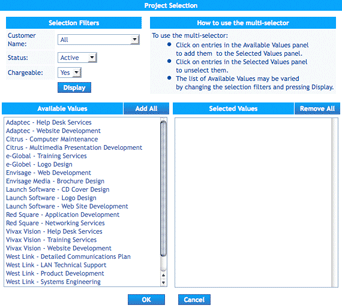
The multi-selector screen.
Reports for which you can use the multi-selector tool include:
Intertec TimePro v5.1 introduces two special categories of User access: External Access Customer and External Access Supplier.
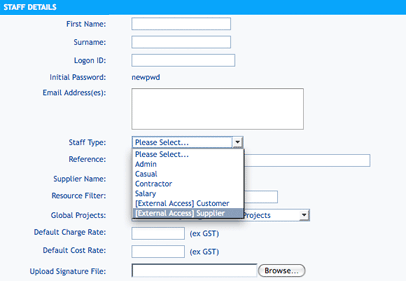
New StaffType categories: External Access Customer and External Access Supplier
When creating a Intertec TimePro Staff record, you now have the option of selecting the Staff Type as 'External Access Customer' or 'External Access Supplier' from the Staff Type drop down list. When you select either of these values the screen automatically hides fields that are not relevant to Customers or Suppliers.
External Access users will be able to access Intertec TimePro reports pertinent to their company:
External Access Users can also change their password.
This new feature gives you the versatility of providing your Customers and Suppliers with a restricted view of time tracking information in Intertec TimePro directly relevant to them, while keeping other information secure.
Now, you can specify the maximum width of the drop-down lists in Time Entry - for the Customer, Project and Task drop-downs. Widths can be set between 0 (for automatic drop-down sizing) and 500 pixels. If the specified width is narrower than the text, the text will be truncated to display in the visible box.
In the Custom Reports screen (under the "Settings" tab), you now have the option of releasing a standard page as a custom report, or releasing a custom report.
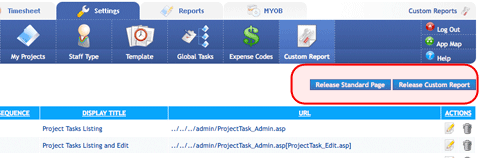
Choosing to release a standard page presents you with a series of options to select, including:
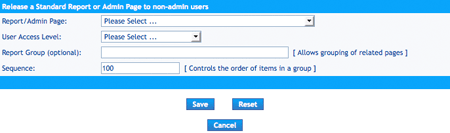
This makes controlling access to Admin-only pages much easier, without having to manually enter the filenames of pages to be released.
In a nutshell, users should find that their Intertec TimePro system is now significantly faster, especially on pages that display a lot of data.
Time and Expense Entry screens will now "grow" in size automatically to accommodate the number of Input Rows required.
Note: This means that the two configuration items for Time and Expense input rows are no longer available. There will now be a fixed number of rowsoffered by default, and further rows added as described above. If the option to pre-populate the customer and project details is turned on, then the number of rows presented will be at least the default number, increased to the number of active Staff Project records for the staff member, with an absolute upper bound of 30 rows set up initially.
Attendance Time Recording can be a useful feature in the case where you only record "Worked Hours" for your standard Project time recording, but still need to be able to record Start and Finish Times for Staff to track their Attendance.
If enabled, Attendance times is displayed on the View Timesheet screen, and on the Staff Timesheet generated via the "Print Detailed Timesheet" button in the Intertec TimePro toolbar. Attendance Time recording can be enabled via Intertec TimePro's configuration setting.
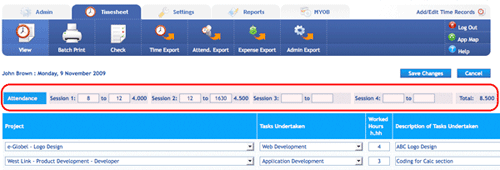
Attendance record fields in the Time Entry screen
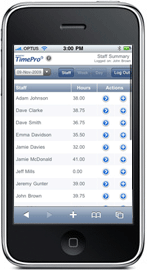
Compact running on a iPhone
Minor Enhancements
- Projects can now be re-assigned to a different customer In previous versions of Intertec TimePro, the Customer assigned to a Project is fixed once the Project record is saved and cannot be changed. With v5.1, this restriction has been lifted -- you can now re-assign a Project to a different Customer.
- Customer drop down lists in Time and Expense Entry screens show customers relevant to Users Intertec TimePro v5.1 now limits the customer drop down lists on the Time and Expense entry screens to show only Customers that are relevant to the User ie. Customers with Projects to which the Staff member currently has active project assignments.
- Staff Project Screen now lists up to 1000 records Due to recent performance improvements in the system, the limit for listing Staff Project records has been increased from 500 records to 1000 records.
- Mail server authentication enabled in Intertec TimePro In-house Mail server authentication is now an optional system configuration for Intertec TimePro In-house users who use a mail server with SMTP authentication.
- New report: Staff Attendance Report. This reports attendance times for a period. It is visible only if Attendance Times are enabled in the Intertec TimePro configuration settings.
- Expense record deletion alert The functionality of Expense record deletion has been improved to prevent records from being accidentally deleted. In previous versions of Intertec TimePro, Expense records were permanently removed when the User chose the Delete option. Now, Expense records are first marked for deletion and only permanently removed when the user presses "Save Changes" in the Expense entry screen. This gives the user the ability to back out if records have been deleted by mistake.
- Daily, weekly and period totals shown on manager authorization screens (Intertec TimePro v5.1.30) The Authorisation screens used by Managers to review and approve/reject timesheets now provide daily, weekly and period totals for the timesheets shown.
MYOB Module Enhancements
- MYOB Integration Module We have updated the Intertec TimePro MYOB Integration Module to enable integration with the most recent releases of MYOB Accounting and Business Products, including:
- MYOB Accounting 17-18.5 (Australia)
- MYOB Accounting Plus 17-18.5 (Australia)
- MYOB Premier 11-12.5 (Australia)
- MYOB Accounting 17-18 (New Zealand)
- MYOB Accounting Plus 17-18 (New Zealand)
- MYOB Premier 11-12 (New Zealand)
- MYOB Activity Slips export Intertec TimePro v5.1 gives Administrators the option of limiting time records for export as Activity Slips to:
- All data, regardless of setting
- Only Projects which are flagged for export to MYOB
- Only Projects which are not flagged for export to MYOB
This provides you with the flexibility of controlling the use of time records exported as MYOB Activity Slips when integrating with MYOB.
Minor changes and misbehaviours corrected
- The Expense Entry screen layout has been modified to be consistent with the layout of the Time Entry screen.
- On the Expense Entry screen in some particular circumstances the Project list showed only Projects for the same Customer rather than a list of all relevant Projects. This has now been corrected.
- Expense amounts greater than 999.99 were totalled incorrectly on the Expense Entry screen. This has now been corrected.
- On the Time Entry screen, a misbehaviour in negative times automatically disabling the overlapping-times check has been rectified.
- In Time and Expense entry there is an auto-complete option which will pre-load the last entry used when opening an entry page with no current details. When viewing (as distinct from editing) a period with no entries at all, the text for these last-used values was displayed. This behaviour has been corrected, and a blank table is now presented.
- In previous versions of Intertec TimePro, under rare circumstances when using the time/expense entry screens, if an Administrator opened more than one browser window within the same browser session and selected different Staff members in each session, then time and/or expense records could be saved against the wrong Staff member if you were switching between the windows in the middle of operations.
- Report headings have in the past had a timestamp based on the server's time and date. An attempt is now made to use the correct date and time on the user's own machine. This is achieved by adjusting the server time by the offset in hours between the server's time and the user's machine's time. If the user's machine has the wrong date or time, the report's timestamp will be incorrect by the time error.
- You can now enter 0 hours as the Budget Hours in Project Task records.
- The file upload process for the Project Task Import has had some internal improvements.
- The warning message when deleting a disabled Project now gives more specific information on Staff Projects, Time and Expense data associated with the Project.
- If more than one authorisation page was opened by clicking on the links in Authorisation emails, the system behaviour was such that accepting or rejecting on any page would accept or reject the last item opened. This behaviour has now been corrected.
- A few minor misbehaviours in the way DrillDown functions dealt with Staff Project Roles has have been corrected.
- Intertec TimePro reports have had several minor adjustments to improve consistency of operation.
- The date range supplied in the Project Cost and Expense by Week for Period Report was previously handled so as to start the display of a week on the nominated day, not the nearest week-start day. For example, if the start date of the range was set to 4th Feb 2009, a Wednesday, then the weeks were arranged from Wednesday to Tuesday even if the period start day was Monday. This has been corrected and the display now starts with the nearest preceding period-starting day of the week, ends with the nearest period-ending day of the week, and shows data only between the selected dates.
- The output of Intertec TimePro exports in HTML format has been improved. Numeric values are now right-aligned.
Intertec TimePro v5.0999 upgrade (November 2008)
- The Time Entry screen now displays times as hh:mm (eg 8:05) as default instead of hh.hh (eg 8.08) for Intertec TimePro systems that have the rounding in the Time Entry configuration settings set to (Any, 5mins, 10mins or 20mins - ie roundings that can result in recurring fractions when shown as decimal). In these circumstances, times are shown as hours and minutes instead of decimal format (ie hh:mm instead of hh.hh), making times more readable.
- The Company Name is now displayed on all screens and in all messages related to Timesheet Authorisation. This is particularly helpful for companies running more than one system, as it facilitates easy identification of the system the Authorisation request is related to.
- The Report Banner interface has been modified to allow the logo image to be replaced with another. This allows for rebranding with a customer's logo, when building custom reports for clients.
- In the case where Global Tasks were being listed on the weekly edit screen, the grouping of Projects and Tasks has been improved so that less input lines are used where there were repetitions of the same Project/Task combination across several days.
- The formatting and layout of the Authorisation Screen and the Print Detailed Timesheet (Staff Timesheet) have been improved.
- Updated for compatibility with latest MYOB releases: MYOB Accounting v18, Accounting Plus v18 and Premier v12, Account Edge (Mac) v8.
Minor changes and misbehaviours corrected
- The validation error message displayed when the Budget Hours field in the Project Task Edit screen is in error has been improved.
- A fix has been implemented to rectify a bug where, under certain conditions, an invalid ID could be passed to the Staff Projects edit page, making it inoperable.
- A fix has been implemented to rectify a bug in the Project Staff Admin listing which, under certain conditions, prevented the listing from displaying after a Bulk Change has been undertaken.
- A fix has been implemented to rectify a bug in the View Timesheets screen where a refresh interval of 0 was causing constant refresh. Selecting a refresh interval of 0 now prevents refreshing, which was the original intention.
- The Compact Interface has been improved to prevent constant refreshing of the Staff Summary page, Staff Detail page and Default page if a refresh interval of 0 was defined in the configuration settings. Setting the refresh interval to 0 now prevents refreshing on these screens.
- Some minor rounding issues were resolved on the Time Entry screen, where recurring decimal fractions were involved. An entry of 8.083 was being rounded down to 8:04 on the Save instead of 8:05 which is closer to 8.083.
- Old legacy Project Codes that were mixed case (instead of all UPPER case), could cause the Project Description to not display on the Time Entry screen. This has been resolved.
- The Project Cost For Period Report has been updated to prevent a divide by 0 error if the Project being reported on did not have a budget recorded for it.
- Some minor improvements made to the operation of the Project Bulk Change function.
- The View Timesheet screen has been improved to survive the deletion of the default staff member since the last visit to this screen.
- When Customers and Projects were disabled they no longer appeared when editing existing Expense records. They are now shown with a [disabled] suffix.
- Minor fixes to improve the operation of the Staff Admin, Staff Projects Admin and Time Entry screens.
Intertec TimePro v5.0995 upgrade (July 2008)
Enhancements
- Global Tasks
- Check Timesheets
- Staff Type: Limits the Staff displayed by Staff Type.
- Manager: Limits the Staff displayed by Staff Manager. Note that this filter is only available if the Authorisation Manager configuration setting has been set to "Staff" (Staff Manager).
- SSL Compatibility
Previously, Intertec TimePro Administrators were limited to 30 characters in Global Task descriptions. This update extends the number of characters to 255, letting you create more descriptive and meaningful Global Tasks for Users to select. You should, however, keep all Global Task descriptions to a reasonable length so as to avoid over-extending the width of the Time Input table.
Two new drop-down menus are now available in the Check Timesheets screen that will allow you to filter the list of Staff displayed in the Staff Time Summary table:
To improve usability, the Check Timesheets screen now suppresses the list of Staff displayed if there are more than 100 Staff records in the system. For customers with more than 100 Staff records, select from the new filtering options available and click the 'Display' button to display a list Staff in this screen.
This upgrade now makes Intertec TimePro v5.0 compatible with SSL. This is particularly useful for Intertec TimePro In-House customers who would like to run Intertec TimePro in a more secure environment as the system can now be placed and accessed under the https:// setting.
MYOB Module Enhancements
- Sales/Purchase Invoices
Editing time records which have been previously invoiced and batched will now retain those time records' batched/invoiced status. Previously, editing time records which have already been batched would undo those time records from the batch, making them at risk of being re-invoiced at the next Sales/Purchases Invoice Export.
Minor changes and misbehaviours corrected
- Under certain configuration settings, the Staff listing does not return to the correct listing after a Staff record has been edited and saved, instead reverting to a listing of all Staff records. This has now been rectified so that the listing shown after the edit retains the filters used to list the Staff records before the edit.
- A fix has been implemented for a bug in Intertec TimePro In-House v5.0 which, under specific configuration settings, caused some submitted and completed time records to become uncompleted if a daily timesheet was viewed.
- A fix has been applied to the Text Search function in the Staff Projects screen, correcting a minor bug that allowed additional records to be displayed if a text search was made for a number in the Staff Projects records.
- A fix has been made for a minor bug which prevented the selection of a Project in the Expense Entry screen if the Customer select drop down menu was also present, and if the Staff had only been assigned to one Project.
Intertec TimePro v5.0 (February 2008)
Major Enhancements
- New Stylish Interface - Choose a Colour Scheme
- Global Projects
- Staff Projects - Bulk Change
- Text Search in Admin Records Listings
Intertec TimePro v5.0 offers Administrators a choice of nine possible colour schemes for the Intertec TimePro interface, which can be set in the General Configuration Settings. Options range from the "Classic" blue colour scheme familiar to most Intertec TimePro users, to more diverse colour themes including "Onyx Cherry", "Cloudscape" and "Earth Tones". This ability to change the colour scheme lets you select colour schemes that closely align with your corporate profile and branding. In addition it is now possible for us to develop new colour schemes "skins" for our clients (consulting fees apply).
The Global Project function is a powerful new feature in Intertec TimePro which gives Administrators the option of making a new Project automatically visible to all Staff in the system. With Global Projects, Administrators no longer need to assign each Staff member to a Project either manually or using the Staff Copy or Project Copy function. Instead, the Administrator is able to flag a Project as a Global Project, and Intertec TimePro will automatically assign the Project to all eligible Staff in the system. The Global Project feature significantly reduces the amount of administrative overhead for organisations that need to quickly set up Projects that have to be visible to all Staff.
The Global Project function works by the Administrator marking Staff records for automatic assigning to Global Projects. When a new Global Project is created, all Staff records identified thus will be automatically assigned to this Project. Administrators can also assign a default Charge and Cost Rate to each Staff record. These rates are then applied to all Staff to Project assignments created using the Global Project function.
The new Staff Projects - Bulk Change function is one of the most powerful features in the system upgrade. Previously, when Charge or Cost Rates needed to be changed, or if new Cost Codes had to be assigned to Staff Project records, Administrators had to make these changes one record at a time, which can be time-consuming if there are multiple rate changes to be made. The new Staff Projects - Bulk Change function simplifies the process by letting Intertec TimePro Administrators update multiple Staff Project records at once, reducing the time and effort it takes to perform these changes.
To perform a Bulk Change to Staff Project records, the Administrator displays the Staff Project records to be changed, and enters the Bulk Change screen. Here, they simply specify new values to be changed to perform the Bulk Change. Bulk Changes apply from an effective Date, allowing the Administrator to retrospectively apply changes to existing Time records.
The new Staff Projects - Bulk Change function also allows Administrators to remove Disabled Staff Project records which do not have Time or Expense data recorded against them.
The Text Search is a new enhancement available on the maintenance screens for Staff, Project, Staff Project, Project Task, Customer, Manager, Supplier and Cost Code records. This Search tool allows Administrators to search target columns of each maintenance screen to show matching records without having to browse through all records listed on screen.
If using Project Specific Tasks, the Text Search function also allows Administrators to extend a search across the Tasks in all Projects.
Minor Enhancements
- Entry of Negative Time
- Entry of Zero Time
- Enter Expenses Including Tax
- Default Charge and Cost Rates
- Project Specific Tasks sequencing in Time Entry
- Administrator Access Only
- Rate Change Options
- Standard Edit - which modifies the selected record directly, affecting all time and expense records already attached to the record as well as all new time and expense records entered, or;
- Historical-Preservation Edit - which disables the selected Staff Project record, thus preserving the charge/cost rates and the cost code attached to existing time records, and creates a new Staff Project record containing the new values, to which all future time and expense records will be associated.
- Displaying Roles in Print and Authorise Timesheets
- Access Control
- Manager Authorisation Page Layout
- Time Entry Project Selection
The Entry of Negative Time allows Users to enter time in a project that is deducted from the total hours they have so far recorded for that project. Negative Time can be used to correct errors in time records from past periods or from timesheets which have already been submitted. To record Negative Time, Users enter the time as Start/Finish Times and check a box nominating these hours as Negative Time. If times are recorded as Worked Hours, then they can be entered using a minus sign to indicate Negative Time.
At times, you may require Staff to submit a timesheet even if they have not worked during the time period. In this case, the Entry of Zero Time setting will prove useful. Zero Time can be selected via the Time Entry Configuration Settings in Intertec TimePro, and allows Users to enter zero (0) hours in their timesheets, or to select Start and End times which are the same.
This is a new configuration setting that allows Administrators to determine whether Expenses entered in Intertec TimePro are to include or exclude Tax (in previous versions of Intertec TimePro, Expenses had to be entered excluding Tax). The Tax Flag in the Add/Edit Expenses screen is still used to denote whether Tax applies to the Expense item.
The Manage My Projects screen, which lets Users assign themselves to Projects, has been enhanced to take advantage of the Global Projects function. When Users now add themselves to Projects, the Default Charge and Cost Rates in their Staff records will be automatically applied to their new Staff Project record assignments. Administrators no longer need to enter Charge and Cost Rates to Project Staff records which Users have created using Manage My Projects.
The Project Specific Tasks displayed in the Task Undertaken drop down menu in the Time Entry screen is now listed in numerical order based on the Sequence Number assigned to the Project Specific Tasks, making for easier identification of Tasks by Users. This enhancement allows Administrators to define the sequence of Project Specific Tasks displayed in the drop down menu. If Task Sequence Numbers are not used then the ordering of tasks is as it was previously (description order).
The system upgrade allows Administrators to set a configuration option which immediately prevent all access by non-Admin Staff. Previously it was only possible to prevent non-Admin Staff members from logging on, and thus there was no way of preventing access for those already logged on.
Options are now available when editing the Rate (Charge and Cost) or Cost Code for a Staff Project Record. Intertec TimePro Administrators can now choose to make:
The optional Role field is used to let Intertec TimePro Administrators allocate a role to a Staff member on a Project. It is most often implemented when Staff have multiple Roles (and thus, multiple rates) on the same Project. If Roles have been entered against Staff Project records, Intertec TimePro now displays the Role in both the print timesheets (Project Timesheets, Summary Timesheets and Detail Timesheets), and also in the Authorise Timesheets screen, which is available to authorising managers.
The Access Control feature, used to make particular Administration pages within Intertec TimePro available to non-Admin users, has been enhanced to allow the release of ANY Intertec TimePro Administration pages, including Admin-only reports, to other users of Intertec TimePro. Previously this feature was mainly used to control the release of Admin only reports and it only had support for a limited number of admin pages.
The Manager Authorisation Page, where Authorising Managers can view a Staff or Project timesheet which has been submitted for authorisation, has been enhanced for improved readability. Now, Tasks and Descriptions are clearly aligned to time entry items so that Managers can quickly and easily identify the tasks associated with each time record in the timesheet.
The population of Projects in the Project selection drop down menu in the Time Entry screen has been enhanced to improve the speed at which the Time Entry screen is displayed, especially if there are a large number of active Project records in Intertec TimePro.
MYOB Module Enhancements
- MYOB Integration Module
- MYOB Accounting 17 (Australia)
- MYOB Accounting Plus 17 (Australia)
- MYOB Premier 11 (Australia)
- MYOB Accounting 17 (New Zealand)
- MYOB Accounting Plus 17 (New Zealand)
- MYOB Premier 11 (New Zealand)
- Default MYOB Activity Record
We have updated the Intertec TimePro MYOB Integration Module to enable integration with the most recent releases of MYOB Accounting and Business Products, including:
To facilitate the use of Global Projects, Intertec TimePro will now insert a default MYOB Activity record called "Not yet assigned" in Staff Project records if there are no MYOB Activity records set up in Intertec TimePro, or if there are multiple MYOB Activity records in Intertec TimePro prior to the creation of Global Projects. This default record will remind Administrators that they need to assign a MYOB Activity to the Staff Project Record. If there is only one MYOB Activity record in the system prior to the creation of Global Projects, it will be assigned as the default MYOB Activity for all Staff Project records created using the Global Project function.
Minor changes and misbehaviours corrected
- The selection of a Lockdown Date in the Check Timesheets screen has been improved. Previously, Administrators could inadvertently select the line separator between past and future time periods for lockdown. This has been fixed to prevent the selection of the line separator. An alert message is shown if the Administrator attempts to select the line separator.
- The Expense Input function in Intertec TimePro has been improved to allow the entry of '0' and negative costs for each expense item recorded. This allows for greater use of Expenses in recording expense items that need to be tracked but not necessarily billed or reimbursed, or for re-balancing expenses which may have been incorrectly recorded in previously submitted timesheets.
- The MYOB Integration Module now marks invoice amounts as inclusive of Tax when exporting as Sales and Purchases Invoices for MYOB Accounting 17, Accounting Plus 17 and Premier 11 (Aus and NZ). This resolves a minor computational issue in these versions of MYOB, which affects the resolution of decimal places when calculating Tax-inclusive amounts.
- A minor misbehaviour in the reporting of the balances remaining in the Project Cost and Expense by Week for Period Report has been corrected.
- A minor technical issue in the Project Cost Detail Report, which inserts non-breaking spaces in the report format, has been corrected. This issue had prevented the report output being used in mathematical formulas when "copied" and "pasted" from Intertec TimePro to spreadsheet programs such as Microsoft Excel.
- The calculation used to define the width of the Customer and Project drop-down menus in the Time Entry and Expenses Entry screens has been improved to prevent truncation of Customer and Project names in certain circumstances.
- The Project Task Budget Report now shows all Tasks regardless of whether a date range has been selected or not. Previously, defining a date range would show only Tasks which had times recorded against them within the date range. Now, the report will also include Tasks which do not yet have times recorded against them.
Intertec TimePro v4.6 (February 2007)
Major Enhancements
- Compact Interface
- PDA Users: The Compact Interface makes Intertec TimePro accessible to users of mobile PDA devices, Pocket PCs, Palm Pilots and Blackberrys. The Intertec TimePro Compact Interface makes Intertec TimePro more readily available to a mobile workforce, such as staff out on site or on the road.
- All Users: It makes Intertec TimePro a very useful tool for your desktop, providing a more convenient time entry screen in a compact interface.
- Secure login
- Weekly timesheet view
- Daily timesheet view
- Time entry
- Time update
- Start/Stop time recording at the push of a button
- Timesheet validation with your Intertec TimePro database
- Calendar control
- Staff Manager Authorisation
- Access Control
- New 'Admin Data Export'
- New Time and Expense Data Export options
- Limit export data by Manager: choose to export data associated with a type of Manager, and then further refine your export to records associated with all managers, records with no managers, or records associated with a specific manager.
- Summary export: summarises time or expense records in the export.
The Compact Interface provides users with a neat and compact entry interface for core time-entry activities. This serves two very good purposes:
The Compact Interface includes key standard Intertec TimePro features, including:
Intertec TimePro v4.6 introduces a new level of Authorisation - that of Staff or Line Manager Authorisation. Intertec TimePro Administrators can now choose to assign a Manager to a Staff Record, and choose to set the Use Authorisation configuration in Intertec TimePro to enable authorisation of Staff timesheets by Managers. Once set to this configuration, timesheets require approval by the authorising manager associated with Staff before they are marked as complete.
The Staff Manager Authorisation complements the previous Project Manager Authorisation by giving organisations the option to choose between Project-based or Staff-based authorisations for submitted time records.
Intertec TimePro v4.6 comes with the new 'Access Control' configuration, which lets you release specific administration pages, including Admin-only reports, to other users of Intertec TimePro. Used in conjunction with the Custom Reports feature under Intertec TimePro Settings, this feature lets you make the standard Intertec TimePro Reports, which were previously available only to Administrators, available to non-Administrator Users.
The Access Control feature can also be used to make particular Administration pages within Intertec TimePro available to non-Admin users.
The new Admin Data Export in Intertec TimePro v4.6 expands on the export options available to Administrators. Now, Intertec TimePro Administrators can export Admin-related information from the system. Unlike the Time Data or Expense Data Exports which will only include records which have times/expenses recorded against them, the Admin Data Export will include all the data regardless of the existence of associates time/expense records. The Admin Data Export outputs Admin records in Tab Delimited Text, Comma-Separate Values and HTML.
Intertec TimePro v4.6 introduces two new filters for limiting data exported via the Time Data Export and Expense Data Export operations in Intertec TimePro:
Minor Enhancements
- Addition of a new General Configuration Setting - "Staff Administer Own Projects - Notification". If this is set to "On", the Project Manager or Staff Manager, whichever is appropriate, will be notified by email of any project assignments made by Staff. If there is no associated Project Manager / Staff Manager then the timesheet system administrator is notified.
- New configuration setting item - "Session Refresh Period". This lets the Intertec TimePro Administrator define the automatic page refresh interval to be performed on the View Timesheets screen and the Compact Time display screens. Using this feature can help to alleviate unwanted session timeouts due to inactivity.
- The Categories in Configuration Settings have been restructured so that all Time Entry settings are now grouped as a "Time Entry" Category, which can be selected from the Categories drop down.
- When a Intertec TimePro session has timed out, the user/Administrator is shown a screen with login fields. This lets them log in again to the system.
- The handling of two-digit entry of worked hours in Time Entry has been adjusted slightly. In previous versions of Intertec TimePro two-digit values entered up to 10 were treated as hours and other two-digit values were treated as minutes, this has now been adjusted so that two-digit values up to 14 are now treated as hours with other two-digit values being treated as minutes.
- Intertec TimePro v4.6 will check for invalid characters entered in the password field, and displays an error message if these characters are used in the creation of a password. Invalid characters, for example, are <, > and the double quote character (").
- The option in Intertec TimePro Settings to 'Allow multiple projects' has been removed in Intertec TimePro version 4.6 as it has been made redundant. The configuration is now set to 'On' in v4.6, hence a Project can be included more than once in a day's time records. If you have set this configuration to 'Off' in your instance of Intertec TimePro, you might like to consider the implications of setting this to 'On' permanently before you upgrade to v4.6.
- 'Save Changes' and 'Cancel' buttons are now located at both the top and bottom of a timesheet input screen, to make it easier for users to input and save time in Intertec TimePro. You can now also use the ENTER or ESC keys to Save or Cancel time records entered in the timesheet input screen.
- The 'Timesheet Footer Note' field now accepts the use of carriage returns when formatting text in the bottom of the web page in which the timesheet is viewed and on the bottom of timesheets generated by Intertec TimePro.
- If the 'Round Worked Hours' Configuration Setting is set to 5, 10 or 20 minute intervals, then the Worked Hours Time Display is set to h:mm, otherwise Display is in h.hh format.
- The performance of the Print Detail Timesheet and Batch Print functions have been significantly improved: This is especially useful for customers with a large number of projects as it reduces the amount of time Intertec TimePro takes to generate the batch Timesheets for printing.
- Intertec TimePro In-House ver4.6 is now compatible with Microsoft SQL Server 2005.
MYOB Module Enhancements
- Advanced MYOB Import
- MYOB Integration Module
- MYOB Accounting 16 (Australia)
- MYOB Accounting 16 (New Zealand)
- MYOB Accounting Plus 16 (Australia)
- MYOB Accounting Plus 16 (New Zealand)
- MYOB Premier 10 (Australia)
- MYOB Premier 10 (New Zealand)
Intertec TimePro v4.6 makes importing Customer and Supplier data from MYOB into Intertec TimePro even more streamlined and efficient. The new Advanced MYOB Import gives Administrators the option of inserting imported MYOB Customer and Supplier data into the Intertec TimePro Customer and Supplier records, thus eliminating the need to re-create these records in Intertec TimePro.
In the past, the Administrator had to create Customer and Supplier records manually in Intertec TimePro to match the records imported from MYOB. Now, the Administrator can simply check a box to tell Intertec TimePro that you would like these records set up within Intertec TimePro as part of the Import process.
We have updated the Intertec TimePro MYOB Integration Module to enable integration with the most recent releases of MYOB Accounting and Business Products, including:
Minor changes and misbehaviours corrected
- The import program in Intertec TimePro 4.6 has been improved to allow for files based on standard Intertec TimePro CSV templates (eg. Project Task Import files) to import more gracefully into Intertec TimePro.
- It was previously possible, under certain Intertec TimePro configuration circumstances, to copy a timesheet to a time period prior to a Lockdown date using the 'Copy Timesheet' function. Intertec TimePro has now been fixed to disallow this. Timesheets can now only be copied to a time period after a specified lockdown date.
- The validation of email addresses has been improved on the Staff and Manager screens.
- If 'Customer' is selected as an Input Time Field Option, then selecting the default 'Select Customer' option in the Customer field will now show all Projects as selectable in the 'Projects' field.
- Several very minor miscellaneous bugs have also been fixed.
- Some Intertec TimePro display formatting has been improved.
- The import program in Intertec TimePro 4.6 has been improved to allow for files based on standard Intertec TimePro CSV templates (eg. Project Task Import files) to import more gracefully into Intertec TimePro.
- It was previously possible, under certain Intertec TimePro configuration circumstances, to copy a timesheet to a time period prior to a Lockdown date using the 'Copy Timesheet' function. Intertec TimePro has now been streamlined to disallow this. Timesheets can now only be copied to a time period after a specified lockdown date.
- The Lockdown function has been improved so that when an Administrator sets a new Lockdown date in the system, it prevents currently logged on users from amending time records for unsubmitted timesheets prior to the new Lockdown date.
- The Customer Code field has been amended to allow entry of Customer Codes with more than 10 characters.
- The Expense Code function has been revised so that Expense Codes which have been set to 'disabled' are no longer selectable in the Add/Edit Expenses screen.
- The validation of email addresses has been improved on the Staff and Manager screens.
- If 'Customer' is selected as an Input Time Field Option, then selecting the default 'Select Customer' option in the Customer field will now show all Projects as selectable in the 'Projects' field.
- The Staff Time Tracking Report has been improved to prevent non-Administrator Users from displaying other Users' Staff Time Tracking Quick Reports by editing the Staff ID embedded in the Quick Report URL.
- Several very minor miscellaneous bugs have also been fixed.
- Some Intertec TimePro display formatting has been improved.
Intertec TimePro v4.4 (February 2006)
Major Enhancements
- Weekly Time Entry
- New, easy-to-use Toolbar
- Copy Timesheet: This button allows users to copy the time records for the currently displayed period to another time period. It replaces the 'Period Copy' button in previous versions of Intertec TimePro.
- Print Summary Timesheet: This button, a new feature with this upgrade, generates a Summary Timesheet report. See the section below for more detail.
- Print Detail Timesheet: This button replaces the 'Print Staff Timesheet' button, previously located adjacent to the 'Quick Reports' button in the Timesheet View screen. The 'Print Detail Timesheet' button will generate a printable timesheet displaying worked hours for all projects and tasks in the time period.
- Print Expenses: This button replaces the 'View Quick Report on Expenses' button, previously located next to the Expenses button in the Timesheet View screen. This button will display an Expenses Quick Report for printing, if your Intertec TimePro system has been configured to enable 'Expenses Tracking'.
- Submit Timesheet/Complete Timesheet: Intertec TimePro users can now use this button on the Toolbar to submit their timesheet (if Use Authorisation is enabled) or complete their timesheets at the end of the time period. For convenience, this button is also available at the end of the Timesheet View screen. Please note that once a timesheet has been submitted or completed, this button becomes unavailable - shown as a 'greyed out' button on screen.
- Summary Timesheet
Intertec TimePro's time entry function has been made even more flexible with the addition of the Weekly Time Entry feature. This gives Intertec TimePro users the choice of either entering worked hours by day or by week. Please note that this feature is only available when the Intertec TimePro system has been set to enable Worked Hours time entry (done via the 'Settings' tab in Intertec TimePro).
In Weekly Time Entry, Intertec TimePro users select the Customer, Project and Task as per Daily Time Entry, and enter their hours worked for the Project or Task for each day of the week. The Weekly Time Entry grid will automatically calculate and display the total hours recorded per day and per project/task as they are entered, giving Intertec TimePro users an immediate view of the time spent within the week on specific projects.
Weekly Time Entry has been developed with the needs of your staff in mind - it allows staff to more effectively match and manage their time entry activities to work priorities and time recording methods.
Your use of Intertec TimePro has been made easier and more accessible with the provision of a new Toolbar. This Toolbar gives you easy access to frequently used functions and timesheet reports, as well as a new timesheet report: the Summary Timesheet, which is explained in more detail below.
The new Toolbar replaces some of the buttons in previous versions of Intertec TimePro, and also incorporates new features. Functions that are now available via the Toolbar are:
With a single click of a button, Intertec TimePro will generate a Summary Timesheet report that will show Project Totals and Sub-task Totals of hours worked for the given time period. The report also shows sub-totals for the day and week, and period totals.
Minor Enhancements
The functionality of time records deletion has been altered. In earlier versions of Intertec TimePro, time records were permanently removed when the user chose the Delete option. Now, time records are first marked for deletion and only permanently removed when the user presses "Save Changes" in the Intertec TimePro entry screen. This gives the user the ability to back out if records have been deleted by mistake.
Several very minor miscellaneous bugs have been fixed.
Intertec TimePro v4.3 (October 2005)
Major Enhancements
- Staff Copy Feature
- Customer Selection on Time Entry screen
- Project-Time-Task-Description
- Project-Task-Time-Description
- Customer-Project-Time-Task-Description
- Customer-Project-Task-Time-Description
- Staff Listing Enhanced
- Staff Deletion Enhanced
- Staff Projects Listing Enhanced
- Project Copy Enhanced
- Reports
- Two new reports have been added to Intertec TimePro:
Project Cost and Expense by Week Report - allows you to display a Project Report, detailing the Period, Worked Hours, Charge Amount, Expenses and Total for Staff on a specific Project.
Project Cost and Expense by Week for Period Report - allows you to display a Project Report, detailing the Week start date, Worked Hours by day, Total Worked Hours for the week, Charge Amount, Expenses and Total for Staff on a specific Project.
Custom Reports can now be displayed selectively to non-Admin users. The display of Custom Reports can be achieved on three levels:
- show a Custom Report to ALL non-Admin users,
- show a Custom Report to a group of non-Admin users via Staff Types and
- show a Custom Report to a single non-Admin user.
A Staff Copy feature has been added. This works in a similar way to the Project Copy feature. The main benefit of the Staff Copy function is to expedite the creation of Staff Project records by basing your new Staff member on an existing similar Staff member who is already allocated to Projects. When copying a Staff member, the Staff Project Description, Charge and Cost rates can be overridden, if required, in the newly-created Staff Project records.
You can now choose to have the Customer displayed as a primary selector for Projects in the Input Time screen. A new configuration setting, 'Input Time Field Options' is now available. This configuration setting also determines the order in which fields are displayed on the Input Time screen. Options available include:
If a selection is made in the Customer dropdown on the Input Time screen, the Projects dropdown shows only the Projects relevant to that Customer. However, choosing a Customer is optional, you may also directly choose a Project without a Customer having been selected.
If you wish to have some of Intertec TimePro's existing Admin reports made available to some non-admin staff, please contact the Intertec TimePro support centre.
Minor Enhancements
Password Change: If the user enters the default or existing password as the new password on the Password Change screen, the new password will now be rejected.
Default Staff Project Description: There is a new configuration setting to enable a Default Staff Project Description to be defined. The value entered here will be automatically supplied as a default Description for Staff Project records (eg. "Professional services provided by"). This is useful to save time when setting up new records as it prompts for the usual value and helps maintain consistency in the Description.
Project Cost and Expense by Week for Period Report: Explanatory text has been added to explain why no data could be found if the specified date range does not include the project activity.
MYOB Module Enhancements
New MYOB Activity Slips Export: It is now possible to extract information from Time Records in Intertec TimePro and to use this information to generate Activity Slips for importing into MYOB. The activity slips are exported in a text file which is then imported into MYOB. Activity Slips can then be used in MYOB to generate Sales Invoices or to link in with MYOB Payroll.
Addition of the ability to undo Sales Invoice Batches in batch processing.
The tax code shown on MYOB exports is now based on the config setting, rather than a fixed value of GST.
The Description field label in the Staff Project Edit page has been changed to "MYOB Line Item Description".
A small error in the formatting of exported Professional invoices for Accounting Premier 9 is now fixed.
Minor changes and misbehaviours corrected
A small issue with the display of Staff Time Sheets for printing has been corrected. The inclusion of Task Descriptions was being done only if Global Tasks were enabled, so that Task Descriptions were not displayed if ONLY Project-specific Tasks were enabled. This has been corrected so that Task Descriptions are displayed if either or both of these features are enabled.
The Unchargeable Project Summary Report could fail with some date formats. This has been corrected.
Previously, Task Descriptions which included apostrophes caused problems with dynamic population of drop-down lists during time entry. This is now fixed.
The Check Times page was not correctly listing Uncompleted Time. This has been corrected.
A compatibility problem with Firefox browsers has been resolved where normal Intertec TimePro users could not access the Settings tab.
Intertec TimePro v4.2
Major Enhancements
-
TimeRecord Copy Facility
A "Period Copy" facility has been introduced on the View Timesheet screen which gives the ability to copy the currently displayed period's Time Records to any other period (via the standard drop down period selection list). This can save a significant amount of time for Staff members who have very similar timesheets from one period to the next. The only restriction is that no Time Records already exist in the destination period.
Note : The Period Copy facility is only applicable if your Intertec TimePro system has been configured for a "Weekly" rather than "Monthly" Period Type. -
New Project Report
- Project Cost Detail Report - A very powerful new report that reports at the individual Time and Expense Record level, giving you the most detail yet available in a standard Intertec TimePro report.
Minor Enhancements
-
Custom Reports now available for non-admin Staff
Custom reports are now selectively available to non-Admin users. Any Custom Reports contained within Report Groups starting with the word "User" will be visible to non-admin users. -
Data Drill Down
The Drilldown page now orders displayed data by Time Record Date and Start Time if "Start and Finish Times" are used, and Date if not. Previously the Drill Down screen ordered data by Time Record Date only. -
Interface Improvements
- A new unambiguous "Brief" date format has been introduced in Intertec TimePro. "Brief" dates are now displayed as dd mmm rather than dd/mm. For example dates on the View Timesheet screen are now display as "10 May" rather than "10/05".
- Some cosmetic changes to appearance have been made on some pages.
MYOB Module Enhancements
-
MYOB New Release Compatibility
Intertec TimePro has been updated and is now certified for the following latest versions of MYOB:- Accounting v15
- Accounting Plus v15
- Accounting Premier v9
Minor changes and misbehaviours corrected
- None.
Intertec TimePro v4.1
Minor Enhancements
-
Clearer Feedback if no Suppliers Defined
For consistency of appearance, the Staff Edit page now supplies a dummy dropdown with the single entry (none defined) if no suppliers have been defined, instead of a text display stating only that suppliers are not defined. This field is relevant only for contract staff. -
Project Task External ID
Project Tasks have an external ID which was originally defined as an integer. In response to a customer request, this is now a text field, and is consistently labelled Exernal ID. -
Global Task Changes
In response to a customer request, Global Tasks now allow for an external ID, allowing additional information to be recorded against a Global Task. For example, the field can be used to store the Task Code from previous Intertec TimePro versions or an external system, or any other information up to 30 characters in length. -
Password Notification Emails Enhanced
Automatic emails sent to users when an account is created or a password is reset now include detail explaining how to log on, and provide a link to the logon page. -
MYOB Job Field Length
The MYOB Job field length has been increased to match the recent increase made by MYOB (from 5 to 15 characters). -
Focus Override Removed
Time and Expense input pages used to set the input focus to the first field on the page. If data speed was slow, this focus could happen as one was trying to select a project from the dropdown and would close the dropdown. To avoid this annoyance, the automatic focus change no longer takes place. -
Cosmetic Changes
Some cosmetic changes to appearance have been made on some pages.
Intertec TimePro v4.0
Major Enhancements
-
Drill Down Data Viewer
A new drill down data viewer icon has been added to almost every screen and report throughout the application allowing you to instantly drill down to the time and expense records that underlie a particular row of data.
Once the Drill Down screen has been displayed you may further refine the data shown by entering or changing the Date range and pressing the Display button. You can leave the Date fields blank to show all associated data.
There is an Export button which can be used to easily export the data in CSV format suitable for use in a spreadsheet program or other external tool. There is a separate Export for Time records and Expense records.
-
Project Specific Tasks
Intertec TimePro has always supported Tasks in the form of Global Tasks applied to all Projects. In our new release we have added a menu option for Project-specific Tasks. The Global Task list is still supported as an option for all Projects which do not have their own specific Task lists. You can choose to use both options together or, if you prefer, only one.
Project-specific Task lists can be entered manually, copied from another project or imported from a text file saved in CSV (comma-separated-value format). Our online help provides details on how to set up a mapping table using the MS Project Import/Export Wizard.
Project-specific Task lists and recorded Actuals can also be exported in CSV format by clicking on the Export button. The import and export features provide a bi-directional and recurring flow of task-related information between Intertec TimePro and third-party software such as MS Project and MS Excel.
New and enhanced reports complete the package by providing on-line real-time statistical and analytical information.
-
Enhanced Security
The enhancements to security have been designed to a) make it simple to reset a given staff members password and notify them, and b) protect all passwords in the system.
a) Password Reset Facility - located on the Staff admin screen alongside the password field is the password reset icon. When you click on this icon Intertec TimePro automatically resets the user's password to a default as set up by the System Administrator. Staff are notified by email that their password has been reset by the system. After a password has been reset it will need to be changed the next time the Staff member logs on.
b) Protecting Passwords - all passwords are now protected on the Staff admin screen by being masked with a series of asterisk characters, i.e.'*****'. Since all users have to reset the password the first time they log on, it means that the application is now even more secure from unauthorised access.
-
Project Delete
In previous versions it has only been possible for the System Administrator to remove Projects by first manually deleting any related data, i.e. Time Records, Project Staff records and so on. Our new Project delete functionality makes it easy to remove a Project and its related data in a simple and safe two-step process.
1. The first step is to mark a project as 'Disabled'. If you try to delete a project that is not disabled then you will be prompted by the system to first mark the project as disabled.
2. Once the project has been marked as 'Disabled' then if you try to delete the project you will be prompted to confirm your intention to delete. If you do not wish to proceed you can exit the process by pressing the 'Cancel' button. If you choose to proceed then the project and all its related data will be permanently removed.
-
Session Longevity
Intertec TimePro has always had a session timeout period parameter that is set up by the System Administrator. However, depending on server load of the application, there have been times when the user session could be ended after only 20 min of inactivity. Enhancements have now been made to the application that will allow a user session to survive despite periods of inactivity.
Minor Enhancements
-
Timesheet View
In the previous version, once a timesheet was locked by a user, the underlying time records could only be viewed by running a report such as the 'Staff Timesheet Listing All Projects'. Now once a timesheet is locked, the Add/Edit buttons appearing on the Timesheet View screen are replaced by buttons. If the user clicks one of the buttons then the time record and details for that day are displayed in a view-only screen.
-
User Email
The user email icon has been added to the general user application toolbar and allows them to email the System Administrator. If the user clicks on this icon a new email message is created and the subject title of the email is automatically populated with the text "Intertec TimePro query from".
-
Quick View/Edit
Intertec TimePro has new links added to the Project Staff screen that make it easy to navigate to View/Edit any selected Project or Staff detail record. This saves the user from having to navigate back to the main application toolbar and then select either the Project or Staff maintenance screens to locate this information.
-
Field Focus
To further enhance the useability of using the keyboard when entering Time and Expense records, we have added functionality that will set the focus of the cursor for the user so they can type or select options without having to use the mouse.
-
Rounding Hours
Intertec TimePro has always supported the ability to force the rounding of hours entered to be precisely to a quarter hour, i.e. rounded to.00, .25, .50 or .75. Our new release provides more flexible rounding of hours worked and supports the following intervals: any times, 3-minute, 5-minute, 6-minute, 10-minute, 12-minute, 20-minute, quarter-hour, half-hour and whole-hour.
-
Enhancements to MYOB Integration
1. To improve the process of creating invoices using the MYOB Sales Export function, we have added a Customer drop-down list where the user can select to filter invoices for a nominated Customer or "All" Customers.
2. The MYOB Customer import function has been upgraded to allow multiple fields for Customer Names. This allows Intertec TimePro to track companies as well as individuals. The Customer file exported from MYOB may include both Co./Last Name and First Name, and these will be merged in Intertec TimePro's MYOB Customer Name field with a semicolon as separator.
3. MYOB Sales Export function now splits MYOB Customer Name field on a semicolon to give Co./Last Name and First Name fields, which means that you can now export invoices to MYOB correctly to charge individuals as well as companies.
-
Interface Improvements
1. Users of Intertec TimePro would be familiar with the Edit, Delete, Copy options which appear on the administration screens. To improve the look and feel and general usability of the application, these options together with the newly added Drill Down option have been logically grouped into one column titled "Actions".
2. The option for Expense Codes used to be located on the main application tool bar under the Admin Tab. This has now been relocated under the Settings Tab.
-
Timesheet Templates
The design and format of our Project timesheet templates has been improved so it is easier to read multiple Task selections and/or descriptions entered for different working times on the same day.
Minor changes and misbehaviours corrected
There were several minor changes and a few minor bugs that have now been fixed.
- The MYOB import function has been enhanced so that additional fields will be ignored. The record counts have been corrected so that the header row is not counted as a data row, and the results display is now more meaningful.
- When you delete a record, Intertec TimePro asks you to confirm the deletion giving you the description rather than a code. If the text included apostrophes or quote characters, the confirmation failed. A new filter function now sorts out the characters so they work, and all deletion confirmations have been corrected.
- Numerous cosmetic changes have been made to improve the consistency of appearance throughout Intertec TimePro.
Intertec TimePro v3.7
Enhancements
-
Time Entry Past Midnight
Intertec TimePro has a new parameter which will allow staff such as shift workers to enter their hours past midnight on any given day. For example, assuming the parameter has been enabled, Intertec TimePro will allow a shift to run from Monday 20:00 to Tuesday 04:00 and will record this entry as 8 hours worked. - MYOB Module
- Intertec TimePro MYOB Sales Export now shows two levels of invoice details when initially displayed, where as previously it displayed only one level of detail.
- Intertec TimePro has been updated and is now certified for the following latest versions of MYOB:
- Account v14
- Accounting Plus v14
- Accounting Premier v8
-
Other Enhancements
- Project Budget Summary Report - Additional drop down list to allow selection by Staff.
- Project Budget Summary Report - Additional check box to show/hide projects with zero budget amounts.
- Project Task Report - Additional drop down list to allow selection by Staff
- The company name is now displayed on all Intertec TimePro Quick Reports.
Fixes
- Additional validation in Time Entry to prohibit the entry of alphanumeric characters.
- Staff Cost by Week Report - rounding of Total Hours to 2 decimal places.
- Fix of possible error where the last Project Code defaulted has been disabled and could come up as disabled in the new Time Entry screen.
- Only show the Mail Server Name parameter for Intertec TimePro In-House systems.
- During the MYOB Export, additional line item breaks were appearing where there was a change in the value of the Role field. Now the line items are rolled up providing all other fields are the same. This gives a more accurate reflection of the invoice and it's line items as they would appear when exported to MYOB.
- Future periods drop down list in Time Entry screen has light grey background.
Intertec TimePro v3.5 and v3.6
Enhancements
-
Manager Authorisation
Intertec TimePro now provides the functionality to define and assign an Authoriser (Manager) to a Project. When a staff member submits timesheets which require authorisation, the authorising Manager receives an email advising that authorisation is required, with a link for each timesheet (one per Project) for which they are responsible. Clicking on the link will load a Web browser page with the information to be authorised. The Manager may choose to accept a timesheet, or may reject a timesheet. If a Manager chooses to reject a timesheet, he can supply explanatory notes - these will be forwarded to the staff member.
Manager Authorisation includes the following features:- New Configuration Option - Manager Authorisation is included as core functionality in the mainstream application. The functionality can be turned on by enabling a new Intertec TimePro Configuration setting titled "Use Authorisation".
- New Managers Screen - This screen allows new Manager records to be added to the system and for existing Manager records to be updated. You will normally set up a Manager record for each Manager who has responsibility for authorising timesheets for a Project. You can also record multiple email addresses for a Manager.
- Project Authoriser Field - This new field is displayed on the Projects Add/Update screen only if the General Configuration setting "Use Authorisation" is selected. The default value is no authorisation required, which means that when staff members sign their timesheets electronically they are immediately marked as complete. Alternatively, select an Authorising Manager from the drop-down list; in this case, when a staff member signs a timesheet electronically, the timesheet is submitted to the appropriate manager, who is notified by email of the submission, for his or her approval.
-
Check Timesheets - The Check Timesheets page can be used to review the status of the Timesheets for all your Staff. There are now 3 status levels for Timesheet completeness:
- No: Timesheets have not yet been submitted by the Staff member.
- Pending: Timesheets have been submitted by the Staff member but one or more of their project Timesheets has not yet been authorised.
- Yes: Timesheets are completed and authorised where necessary for this Staff member.
- Electronic Signature - If an electronic signature has been recorded for the Authoriser then their signature and name will appear on the bottom of any printed Timesheets as the Authorising Manager.
-
Enhanced MYOB Integration - Work in Progress
Intertec TimePro's MYOB Module has always allowed the user to generate MYOB Invoices and Purchases directly from the time records held in Intertec TimePro. However in the previous release it has only been possible to invoice for all time records that have been marked as "completed" for a given period.
The Enhanced MYOB Module now provides further functionality that allows the user to omit entire invoices, invoice line-items, or individual time records, postponing these until a later invoice batch. Uninvoiced time records can now be run up to a specified date or you can select time records to be invoiced for a specified time period, which is by default the period preceding the current period.
By providing our customers with the ability to handle invoicing for "Work-in-Progress", Intertec TimePro's MYOB Module can be used to complement or replace entirely the Activity Slips functionality in MYOB.
-
Other Enhancements
- The Timesheets View screen will now allow monthly timesheet periods to have a start date other than the 1st of a given month. For example, the monthly period could be setup to run from January 15th to February 14th.
- The already very comprehensive on-line help text has been further revised and improved. If you have printed out the entire Help Manual previously it would be a good idea to re-print the manual as there have been numerous modifications and improvements.
Fixes
- Additional checks have been put in the validation of the Project Code to reject spaces and any non-standard characters.
- During the MYOB Export, additional breaks were appearing and causing 2 invoices to be created instead of one in certain circumstances. Problem resolved by removing any trailing spaces from key fields.
- The budget amount in the Cost Code report was being displayed under the cost column instead of the charge column. Also selecting the detail option combined with the start dates was corrected.
- Fixed small bug in expense input where the first day of a period (when it was equal to the lock date) was not being populated in the drop down when it should have been.
- Fixed small bug in project staff screen such that when in Edit mode, disabled Cost Codes are now still displayed but are shown as disabled.
Intertec TimePro v3.4
Enhancements
- Expense Tracking
Intertec TimePro can now be used to track expenses for your Staff as well as their time! Just enable the "Track Expenses" configuration option and you've got it up and running in no time. You can even define "Expense Codes" to record your expenses against so you can relate the expenses back to your accounting or payroll systems. Expenses are recorded in a very similar way to Time records, so your staff will have no problems getting the most out of this great new facility. All functionality such as "locking" works the same way as it does for your Time records. Expense Tracking includes the following features:- New Expenses Launch Button - shows you a summary total of expenses claimed for a period (if any) and allows you to enter/view expenses for a period
- New Expenses Report - quickly and easily view the details of expense claims by Staff for any time period
- New Expenses Export Facility - export your expenses out to Excel or your Accounting system (csv format) using the newly built Expense Export facility. The Expense Export has been built with the same easy-to-use point-and-click user interface as the Time Records Export.
- Enhanced Time Entry - Task and Description
It is now possible to record both a "Task" and a "Description" when recording time on the time entry screen. This significantly improves the power of the Intertec TimePro application by allowing you to "break down" time spent on your Projects by sub-Tasks whilst still retaining the ability to enter a free format description against each time entry. Validation has been enhanced to allow you to choose from the following options:- Choose "Task required, Description required" to force entry of both fields
- Choose "Task optional, Description optional" to make both fields optional
- Choose "Task optional, Description required" to force entry of only Description
- Choose "Task required, Description optional" to force entry of only Task
- Improved Code Compatibility
Intertec TimePro has been enhanced by increasing the length of several of its key code fields to allow greater compatibility with existing customer systems and procedures.- The Customer Code has been increased in length from 3 characters to 10 characters
- The Project Code has been increased in length from 5 characters to 15 characters
- A Reference Field has been added to the Staff table so that you can record an external ID for each Staff member to help with linking to external systems. This alleviates the need to match by name.
-
MYOB v13 Support
The MYOB Export facility for the generation of TimeBilling Invoices and Professional Services Purchases has been updated to include support for the recently-released MYOB v13 stream of Products including:- Accounting v13
- Accounting Plus v13
- Accounting Premier v7
- AccountEdge v2
- BusinessBasics 1
- FirstEdge 1
Fixes
- The Staff maintenance screens have been updated to prevent the user from changing the Staff Type of the last Admin user. This prevents the possibility of someone accidentally locking themselves out of the system with no Admin access.
- Additional checks have been put in the Staff maintenance screens to prevent Admin users from exceeding the terms of their licence.
- The Add/Edit Project screen now defaults the Budget field to 0, to assist with more efficient data entry.
- The "Upload Signature File" facility on the Staff Maintenance Screen has been improved to work with a wider variety of web servers. Previously there were some issues with some IIS4 Servers.
- Licence Key handling has been improved where a user's licence key has expired. The user can now simply enter their new key immediately upon logging onto the system.
- Security has been tightened to prevent potential access by normal users to the "Batch Timesheet Print Facility" and "Audit Reports".
- The "Pop-up Calendar" has been improved to now work on most browsers (except Netscape v4, Macintosh IE, and Opera).
- Various "Error Messages" and "Hint Text" displayed by the system have been refined and improved.
- The "Charge Rates" and "Cost Rates" columns have been removed from the "Project Role Report" and "Project Task Report" so that Roles will be aggregated as they were in Intertec TimePro v3.2.
- Several minor Field Alignment issues have been corrected in the Reports.
- The Application Map has been updated to provide links to all new items in the system.
- Security has been improved to prevent Proxy Servers recording logon details.
- Usability of drop down lists through Intertec TimePro has been improved. Drop down lists which previously had an "All" option have been changed so that this is now the default option rather than "Please Select", which has been removed.
- The Staff Type screens have been updated to provide warnings and restrictions on the Admin and Contractor Staff Types which have special meanings to the Intertec TimePro application. For example, the screens now prevent anyone removing the Admin Staff Type and thus potentially locking themsleves out of the system.
Intertec TimePro v3.3
Enhancements
- Forward Time Entry
It is now possible to enter time for future periods, making Intertec TimePro a powerful tool for planning and scheduling work ahead of time. The Intertec TimePro Administrator has the ability to set the number of forward periods that are shown to Intertec TimePro users. Forward periods are indicated clearly in the Period Start Date selection list and separated by a horizontal line from current and previous periods.Forward entry of time is a very useful feature, enabling Intertec TimePro users to enter Holiday Leave in advance, to schedule work, forward plan etc.
- Improved Administrator Reporting
A number of new Project, Staff, Cost Code and Task reports have been added to the core Intertec TimePro application.
Staff Reports
-Staff Cost Report
-Staff Cost By Week Report
-Staff Summary Report
-Staff Time Tracking Report
-Staff Utilisation Summary Report
Project Reports
-Project Budget Summary Report
-Project Cost Report
-Project Cost By Week Report
-Project Cost Code Report
-Project Role Report
-Project Task Report
-Unchargeable Project Summary Report
Cost Code Reports
-Cost Code Report
-Cost Code Summary Report
Task Report
-Task Summary Report
- New End-User Report
A new report has been especially created for the end users of Intertec TimePro. The Staff Time Tracking Report allows users to choose any time period (start and end date) and produce a summary of the amount of time spent on all their Projects. Both chargeable and non-chargeable hours are shown allowing Intertec TimePro users to gauge their utilisation percentage. The report is also very useful for checking how much leave they may have taken during any particular period.
- Email Notification of Project Allocation
Administrators can now save even more time by choosing to have Intertec TimePro send an email notification to staff when they have been allocated to a project. The email notification can optionally be sent when adding or modifying a Staff Project record.
- New Standard Print Templates
Two new Standard Timesheet Templates have been added to the Intertec TimePro suite:- GenericHourly (*new*)- date and day of week and hours worked;
- GenericHourlyTask - date and day of week, hours worked and task description;
- Generic -date and day of week, start time, end time and hours worked;
- GenericTask - date and day of week, start time, end time, hours worked and task description;
- StaffHourly (*new*) - date and day of week, hours worked and task description across all projects;
- Staff - date and day of week, start time, end time, hours worked and task description across all projects;
- More Batch Printing Options
The Batch Printing Module has been completely re-written to overcome issues with some particular web browser versions which were limiting output to approximately 35 timesheets within a batch. The performance has also been improved significantly, compatibility with Netscape browsers has been improved and new options have been added.
It is now possible to print batch timesheets for:- a single project;
- all projects flagged for batch printing, i.e. chargeable projects;
- all projects flagged as not for batch printing (*new*), i.e. non-chargeable projects;
- all projects, regardless of the batch printing flag (*new*);
- all staff, showing all their projects on a single timesheet (*new*).
There is now greater control over the order in which batch timesheets are printed for MYOB users:- One invoice per Customer;
- One invoice per Customer and Job;
- One invoice per Customer and Project;
- One invoice per Customer, Job and Project;
- Session TimeOut
The Session Timeout security feature has been enhanced to allow the Intertec TimePro Administrator to allow users to stay connected to Intertec TimePro for up to 10 hours instead of the previous 60 minutes. This allows users to continue to run in a background window for a whole working day without the system logging them off automatically when their session timed out.
- Built-in Calendar Date Selector
To improve ease of use, customers using Microsoft Internet Explorer (IE) can now select date ranges from a pop-up calendar in all of the Intertec TimePro reports and Export facilities that allow the entry of a free-format date range.
- Easier Printing
Quick Reports now have a "Click To Print" button at the top so reports can be more easily directed to the printer.
- Auto-print of Timesheets
When you generate a timesheet or batch of timesheets, Intertec TimePro now automatically pops up the print dialogue as soon as the document is complete.
- Intertec TimePro configuration Settings
The number of Intertec TimePro configuration Settings has increased significantly during the last 2 releases and we have now re-organised the configuration options into new Categories so that they are now easier to locate.The Configuration screen now displays the Intertec TimePro version and Licence details including the maximum number of active Staff that have been licensed.
- Licence Key Modification / Company Name
The Intertec TimePro Licence key for version 3.3 has been increased in length so that it now holds your Company Name within the key. You will now notice that the Company Name field has therefore been removed from the System Configuration settings. If you need to make a change to your Company name you must now request a new licence key via the Intertec TimePro Support Centre.
- Multiple Version Support for Hosted Customers
The Hosted Intertec TimePro application has been improved to allow multiple versions of the application to be run at the same time on a Intertec TimePro server. This gives our customers greater flexibility as they are now able to choose on an individual basis whether or not they wish to upgrade to new versions of Intertec TimePro and also decide when they wish to upgrade.
- Charge and Cost Rate Changes
The on-screen help and Intertec TimePro Help module have been enhanced in the areas of rate changes to make the recommended approaches clearer to help Intertec TimePro administrators select the correct method to get the results they are after.
- File Upload and Email Components
Internally, the Intertec TimePro system has been modified to be able to use several leading File Upload and Email components allowing much greater flexibility for customers who purchase the Intertec TimePro In-House solution. This has no effect on the hosted Intertec TimePro product and our hosted customers.
- Application Map
The Application Map has been simplified and improved to provide all options on the one map rather than having to drill-down into 2nd level maps on some items.
- Improved Online Help
The already very comprehensive on-line help text has been further revised and improved. If you have printed out the entire Help Manual previously it would be a good idea to re-print the manual as there have been numerous modifications and improvements.
- MYOB MacIntosh v10 Support
The MYOB Export facility for the generation of TimeBilling Invoices and Professional Services Purchases has been updated to include support for MYOB MacIntosh v10 users.
- MYOB Export
Additional breakpoints have been added to allow MYOB users greater control and flexibility in how their MYOB Purchases are created.
Fixes
- Minor changes and misbehaviours corrected
There were several minor changes and a few bugs that have now been fixed. -
- Some of the list screens were not correctly retaining their context if you edited a record, so that when you returned to the list screen you saw a different set of records. Context is now correctly remembered, so that you see the same list you saw before.
- The General Export facility now correctly filters output by staff type.
- For Intertec TimePro In-House users, the option to populate the time input page with a user's available projects no longer results in an error if the user had no projects.
- The Help screen will no longer fail if your underlying Intertec TimePro session has timeout out because of lack of activity, but will instead give a meaningful message explaining why Help has become inaccessible.
- A validation problem during addition of Staff Project records has been corrected; it used to insist, under rarely-met circumstances, on a value being supplied where one was not relevant.
- When entering a new Licence Key, a validation error could occassionally occur if the user didn't remove any line feeds from the form field after the new key was pasted in. Any additional line feeds are now stripped out to prevent this error from occurring.
- In all Intertec TimePro reports the "Chargeable" amount column now only includes amounts that are attached to Projects that have been flagged as "Chargeable". Previously any amounts that were attached to Staff Project records that had rates were included in the "Chargeable" amount.
- The View Timesheet screen has been modified to show weeks running from Monday to Sunday instead of Sunday to Saturday when the system is configured to us a Period Type of "Monthly".
- The Sequence field has been removed from the Staff Project List screen. This field is an internal field used by the Intertec TimePro system to ensure uniqueness of records, it is not reuired to be seen by users of Intertec TimePro and has been removed to avoid any possible confusion.
- A file locking issue has been addressed for IIS4 Web Servers which could sometimes cause delays or an error when updating an "Electronic Signature" on the Staff Add/Update screen.
- The Staff Project Add/Update screen has been updated to hide the Suppliers drop down list where no Suppliers have been defined in the system. It has also been modified to only show Active Staff in the Staff drop down list when creating a new record.
- The Reports Tab now defaults to the first set of reports (Staff) instead of the second set of reports (Projects).
- An additional check has been placed into the "Add/Edit Time Records" screen to prevent the user from recording more than 24 hours in a single day.
- Project Codes of less than 5 characters in length no longer cause errors in Netscape v4 browsers.
- The entry of the Description field on the Staff Project Details screen has now been made optional rather than mandatory.
- The Staff Add/Update screen has been updated to display an error message if the user attempts to remove the last Staff member with a type of Admin (thus preventing them from locking themselves out of the system).
- For MYOB users, the order in which a batch of timesheets printed didn't necessarily match the sales invoice sequence. The order now defaults to the same order as sales invoices, and allows the same options for print order as do sales invoices.
- For MYOB users, the option for Export of Purchases Invoices now leaves the Comment field blank.
- For MYOB users, the naming of the export files has now changed to use the terms "Sales" and "Purchases" rather than "TimeBilling" and "ProfServ" as was used previously.
- For MYOB users, the recording of an MYOB Job is now optional when adding or updating a Project in Intertec TimePro. It was previously a mandatory field when creating a Project that was flagged as "Export to MYOB".
- For MYOB users, who use MYOB Premier v6, there have been several fixes to the Intertec TimePro MYOB Export File format to improve compatibility with this version.